
Help Center / Coach & Goals
Coach & Goals
The MeruIQ Coach page turns your trading record into a habit. You get a daily journal, a weekly review, and a coaching report built from deterministic, explainable rules. The Goals page adds monthly targets with live progress tracking. Together, they close the loop between what you planned, what you did, and what you change next.
Daily Journal
The Daily Journal card holds one entry per trading day. The date picker in the card header sets the day you're journaling; it defaults to today, and you can't pick a future date. Once you've logged a few entries, a line under the header tallies how many days you've journaled and flags whether the selected day already has one (this day has an entry or no entry for this day yet). Pick a date with an existing entry and it loads right into the form for editing.
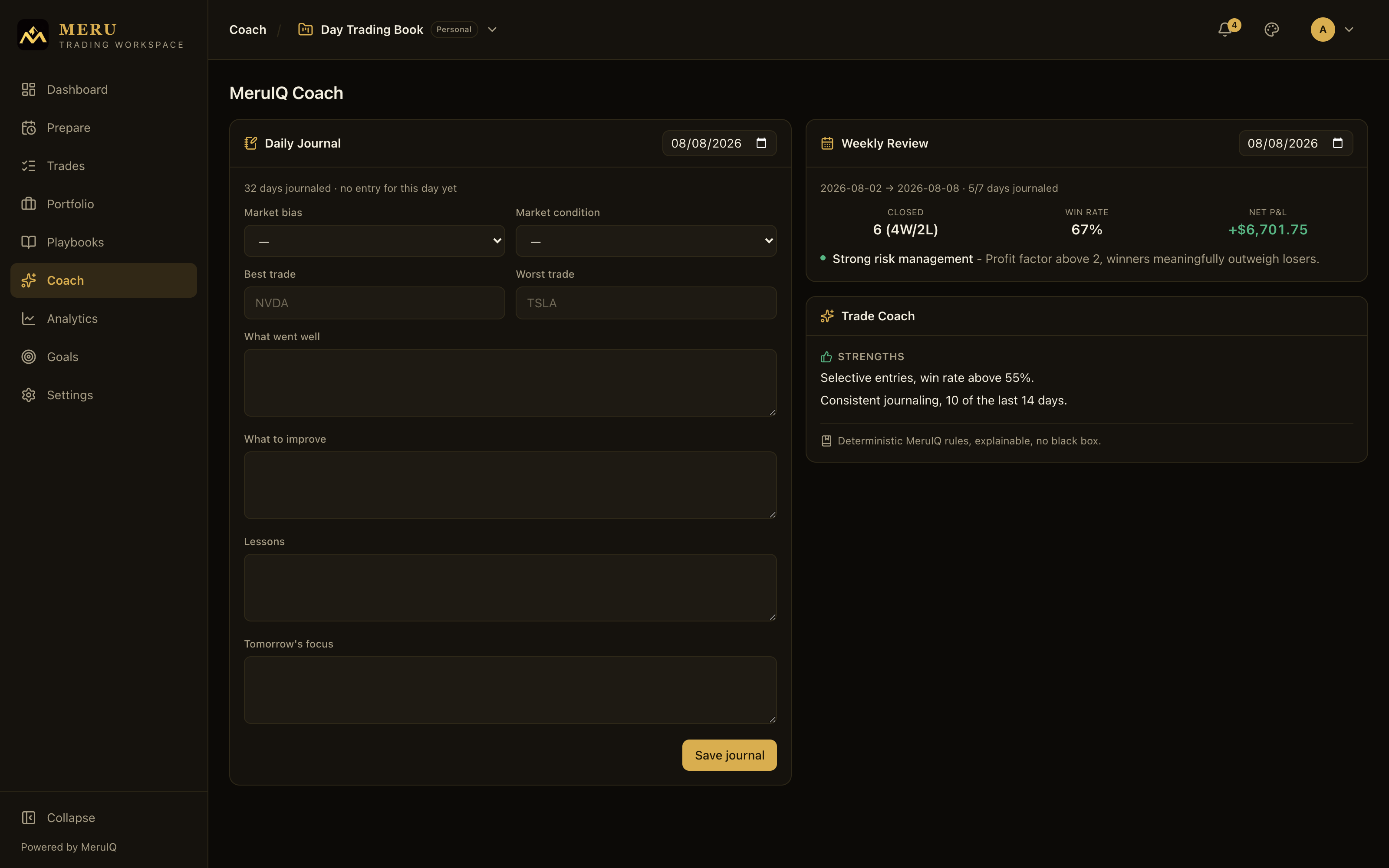
Every field is optional. Fill in what's useful, skip the rest:
- Market bias: your directional read for the day. Bullish, Bearish, Neutral, or Choppy.
- Market condition: how the tape behaved. Trending, Range-bound, Volatile, or Quiet.
- Best trade: the symbol of your best trade of the day (NVDA, say).
- Worst trade: same thing, for the one that hurt.
- What went well: free text for behaviors worth repeating.
- What to improve: the mistakes and near misses.
- Lessons: takeaways you want to remember.
- Tomorrow's focus: the one thing you'll concentrate on next session.
To write an entry:
- Open MeruIQ Coach from the navigation.
- Pick the date in the Daily Journal card header. It defaults to today.
- Set Market bias and Market condition, and note your Best trade and Worst trade symbols.
- Write What went well, What to improve, Lessons, and Tomorrow's focus.
- Click Save journal. A short Saved. confirmation appears.
Weekly Review
The Weekly Review card covers the seven days ending on whatever date you pick in its header. It shows the date range, how many of those days you journaled, and the week's closed-trade numbers: Closed (count with the win/loss split, for example 12 (8W/4L)), Win rate, and Net P&L. Nothing closed in the window? It says so: No closed trades this week.
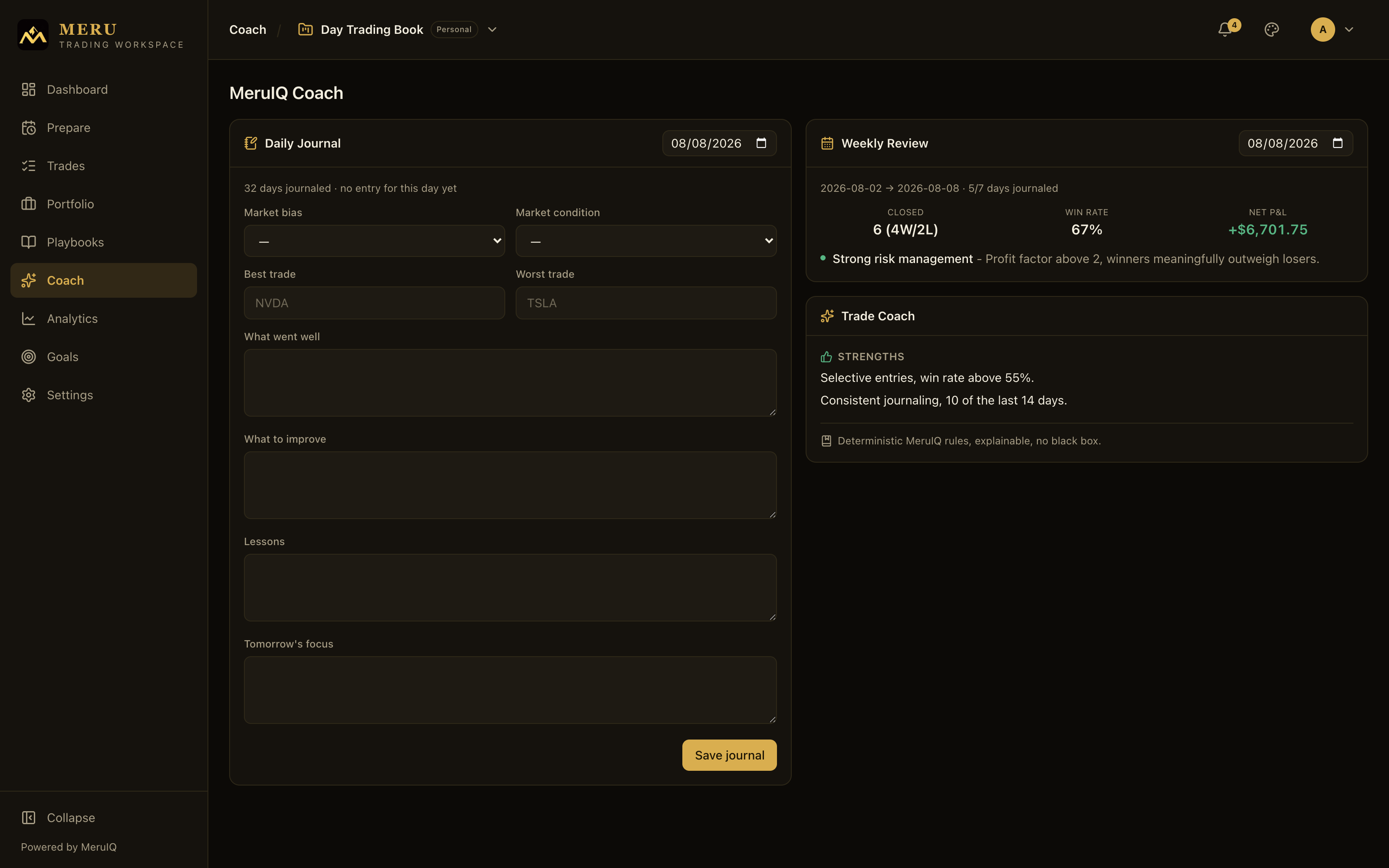
Below the numbers sits a list of insights generated for that week. Each one has a title, a one-line explanation, and a colored dot for severity: green for positive, amber for warnings, neutral for informational notes. Want a past week? Change the week-ending date.
Trade Coach
The Trade Coach card is MeruIQ's standing report on your whole trading record. It's organized into three sections, and each one only shows up when there's actually something to say:
- Strengths: patterns in your record worth keeping, such as edges that show up consistently in your closed trades.
- Weaknesses: recurring problems the rules detect in your results and habits.
- Recommendations: concrete suggestions for what to change or review next.
Every item comes from deterministic MeruIQ rules. The card states it plainly: Deterministic MeruIQ rules, explainable, no black box. The same record always produces the same report, and each item is a plain-language statement of the rule that fired, so you can verify it against your own trades.
Goals
The Goals page sets monthly targets and tracks them live. A month picker at the top right selects the month, defaulting to the current one. Goals are scoped to the active workbook. Whatever workbook you have selected in the header switcher is the one whose goal you're viewing and editing, so each workbook keeps its own targets and history.
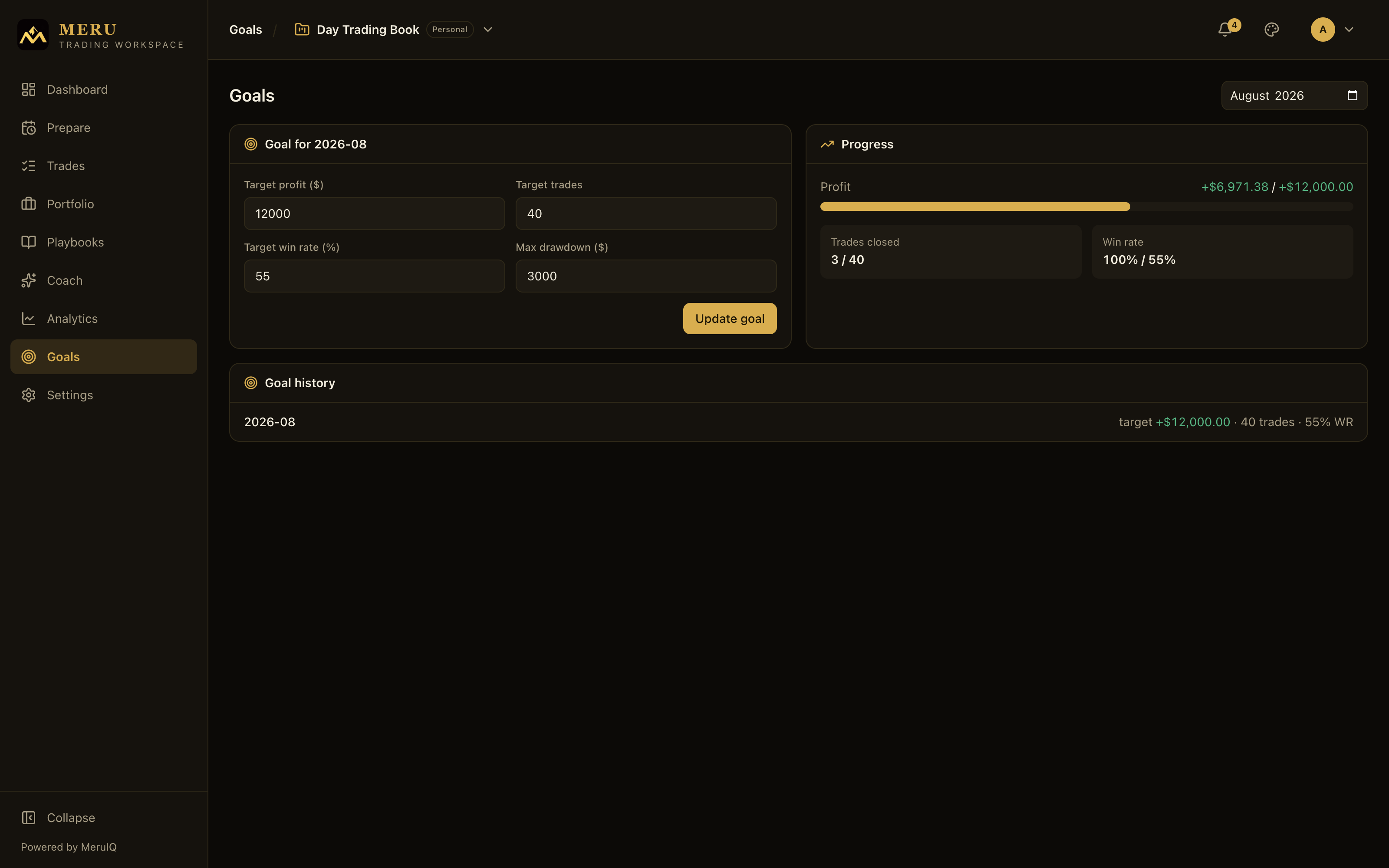
The goal card is titled Goal for the selected month and takes four targets, all optional:
- Target profit ($): the net profit you are aiming for this month, in USD.
- Target trades: how many trades you plan to close.
- Target win rate (%): your win-rate target, entered as a percentage from 0 to 100.
- Max drawdown ($): the largest drawdown you are willing to accept.
- Pick the month with the month picker at the top right.
- Make sure the right workbook is active in the header switcher.
- Enter the targets you care about; you can leave any field blank.
- Click Set goal. If the month already has a goal, the button reads Update goal and saves your changes. A Saved. confirmation appears.
The Progress panel updates as your month unfolds:
- Profit: a progress bar of actual profit against Target profit ($), shown as actual / target. The bar fills toward the target and turns green once you reach it.
- Trades closed: how many trades you have closed this month, against Target trades when set.
- Win rate: your actual win rate for the month, against Target win rate (%) when set.
Until you set targets for the selected month, the panel shows No goal set.
Goal history appears below once you have saved at least one goal. It lists each month with a summary of its targets: target profit, trade count, and win rate. Click any row to jump the whole page to that month and see its goal and progress.