
Help Center / Playbooks
Playbooks
A playbook is one trading setup written down: what it is, when you trade it, the rules you follow, and the guardrails you refuse to cross. Link trades to a playbook and the workspace grades it for you, showing where the setup actually makes money and how faithfully you follow your own plan.
The playbook cards
The Playbooks page shows one card per playbook, each with the playbook's color and icon, its name, and its description. Every number on a card comes from the trades you've linked to that playbook.
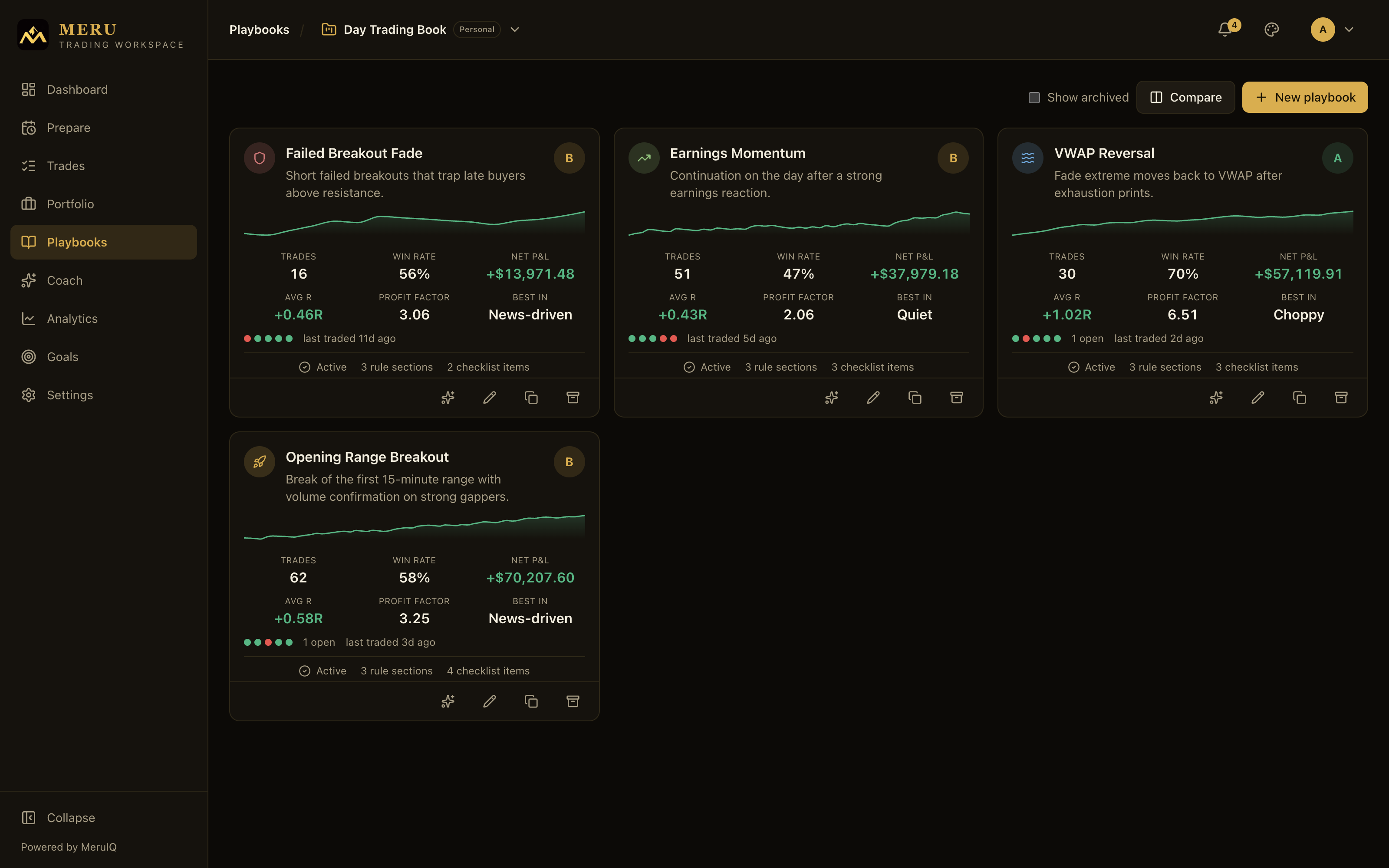
Reading a card from top to bottom:
- Grade badge: the circled letter (A to D, or N/A) in the top right corner is the MeruIQ grade. Hover it and it becomes a question mark; click for the full explanation (see below).
- Sparkline: a small cumulative net P&L curve over the playbook's closed trades. It is green when the running total is positive, red when negative. Hover any point to see the trade number and cumulative amount.
- Trades: closed trades linked to this playbook.
- Win rate: share of those closed trades that finished positive.
- Net P&L: total profit or loss across the linked closed trades.
- Avg R: average result per unit of risk, computed from each trade's entry, stop, and quantity. Trades without a stop are excluded.
- Profit factor: gross profit divided by gross loss.
- Best in: the market condition where this playbook has earned the most net P&L, taken from the condition tags on its trades.
- Freshness dots: up to five green or red dots show the last results, oldest first. Next to them you may see an open-trade count (for example 2 open) and a recency note such as last traded today or last traded 3d ago.
- Active or Archived: the playbook's lifecycle state, followed by how many rule sections are filled in (entry, exit, risk) and how many checklist items the playbook carries.
- Plan adherence: if trades linked to this playbook have saved checklist results, the card shows the average share of items you ticked, colored green from 80%, amber from 50%, red below.
The row of icons along the bottom of each card runs the lifecycle: MeruIQ insights (sparkles), Edit (pencil), Duplicate (copy), and Archive (box) or Restore (arrow) depending on the state.
Creating a playbook
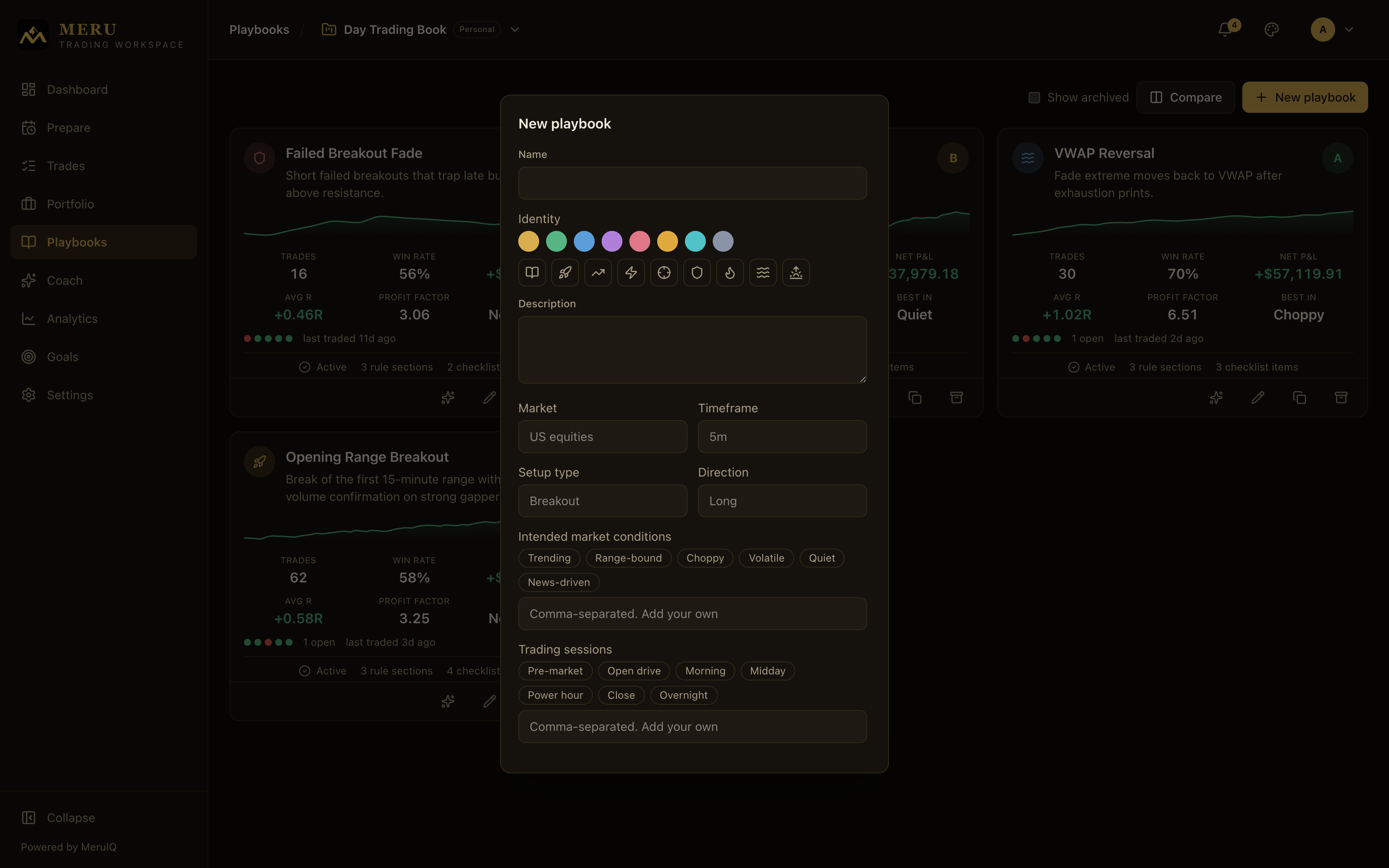
- Open the Playbooks page and click New playbook. Base Camp keeps up to three playbooks and Ascent ten; Summit has no cap. Archived playbooks still count, and nothing is ever deleted on a downgrade.
- Enter a Name (required) and, optionally, a Description of the setup in a sentence or two.
- Pick an Identity: choose one of the eight colors and one of the nine icons. They mark this playbook everywhere in the workspace. Click a selected swatch or icon again to clear it.
- Fill in the strategy profile. Each of these fields suggests common values but accepts anything you type:
- Market: Stocks, Options, Futures, Forex, Crypto, or your own.
- Timeframe: 1m, 5m, 15m, 1h, 4h, Daily, Swing, or your own.
- Setup type: Breakout, Pullback, Reversal, Gap, Trend continuation, Range, News/Event.
- Direction: Long, Short, or Both.
- Intended market conditions: toggle chips for Trending, Range-bound, Choppy, Volatile, Quiet, News-driven, or type a comma-separated list. These labels match the Market condition field on trades, which is what powers the Where It Works comparison later.
- Trading sessions: Pre-market, Open drive, Morning, Midday, Power hour, Close, Overnight.
- Set the guardrails: Max risk / trade (free text, for example 1R or 0.5%), Min reward:risk (a number, for example 2), and Max trades / day. The numeric guardrails are checked against your trades on the Analytics page.
- List the Instruments this playbook is meant for (for example AAPL, TSLA, NQ) and pick a Maturity: Incubating, Validating, or Core.
- Write the rules in their own sections: Entry rules, Exit rules, and Risk rules.
- Add a Pre-trade checklist (one item per line). Each line becomes a tickable item when you record a trade with this playbook.
- Click Save.
The MeruIQ grade
Every playbook carries a letter grade computed from its linked closed trades:
- A: profit factor at least 2.0 and win rate at least 60%, an edge on both axes.
- B: profit factor at least 1.5.
- C: profit factor between 1.0 and 1.5, profitable but a thin edge.
- D: profit factor below 1.0, the playbook is losing money as traded.
- N/A: no closed trades linked yet.
Click the grade badge on any card, or on the detail page, to open the explanation dialog. It states the reason for the grade in plain words and shows the three inputs: Profit factor, Win rate, and Sample (how many closed trades the grade rests on), plus a reference card listing the thresholds above.
Comparing two playbooks
- Click Compare at the top of the page. A checkbox appears on every card and a hint reads "Pick two playbooks to compare head-to-head."
- Tick two playbooks. If you tick a third, the oldest selection is dropped.
- The Head-to-head dialog opens automatically with both playbooks side by side: Grade, Closed trades, Win rate, Profit factor, Net P&L, Average win, Average loss, Plan adherence, Best condition, and Worst condition.
- Close the dialog to pick a different pair, or click Exit compare to leave compare mode.
Duplicate, archive, and restore
Duplicate creates a full copy of the rules, checklist, and identity, useful when a new variation deserves its own track record. A confirmation dialog explains the copy before it's made.
Archive retires a playbook without losing anything: its trades and statistics stay intact; it just stops appearing in the default list and the playbook pickers on trades. Playbooks can be archived but never deleted, so history is always preserved. Tick Show archived at the top of the page to see archived playbooks (shown dimmed), and use Restore on a card to bring one back.
The playbook detail page
Click a playbook's name to open its full page. The header repeats the identity, the Active or Archived state, the market and timeframe, the description, the grade with its one-line reason, and an audit line showing who created and last edited the playbook. The same Edit, Duplicate, and Archive/Restore actions sit on the right, and Back returns you to wherever you came from.
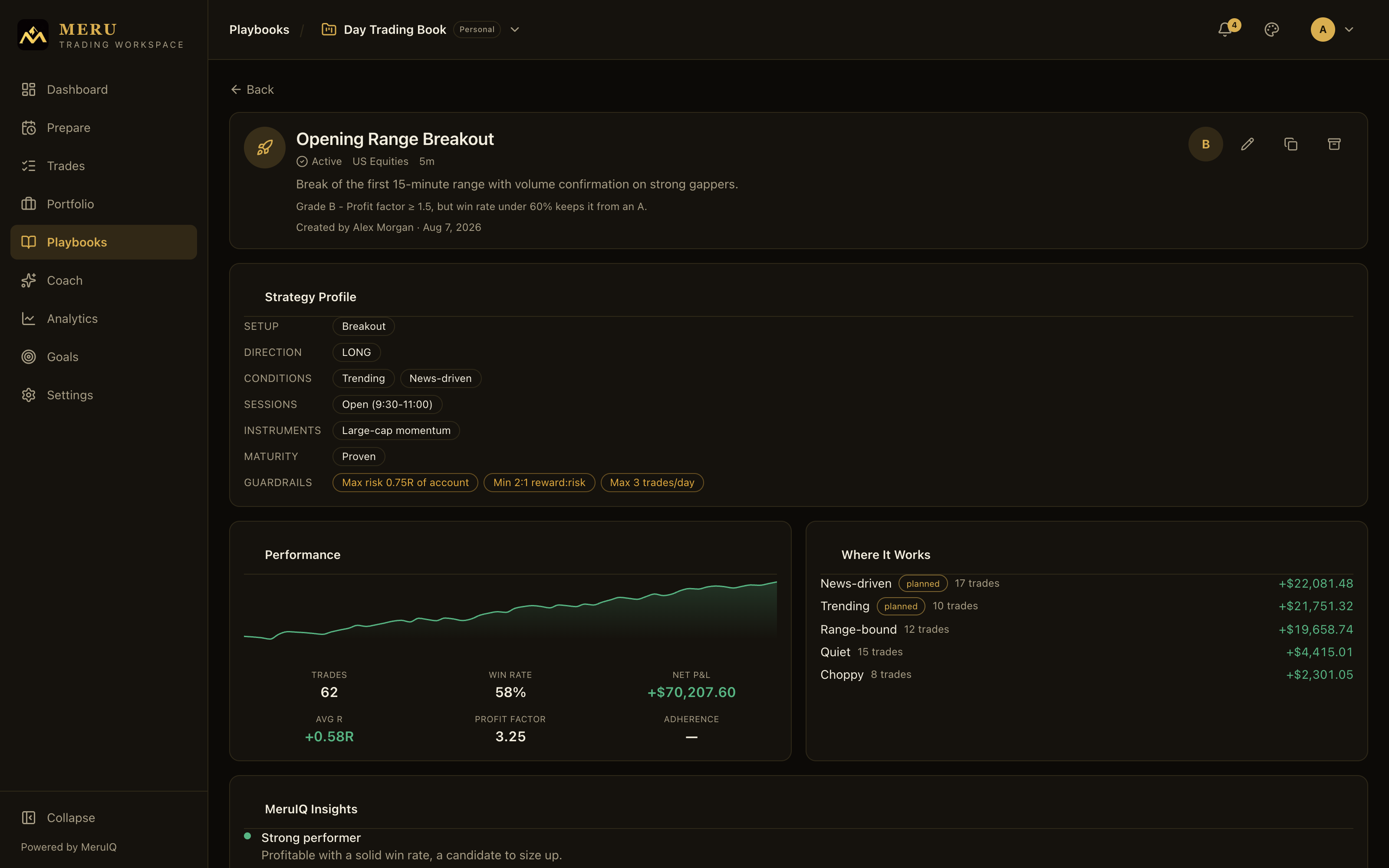
- Strategy Profile: your profile answers as chips, grouped by Setup, Direction, Conditions, Sessions, Instruments, and Maturity, with the Guardrails highlighted in their own row.
- Performance: a larger equity curve over the playbook's closed trades, plus Trades, Win rate, Net P&L, Avg R, Profit factor, and Adherence, the average checklist completion across this playbook's trades.
- Where It Works: net P&L per market condition, built from the condition tags on the linked trades. Conditions that match the playbook's intended conditions carry a planned tag. If none of the traded conditions match the plan, a warning says so: that usually means the setup is being taken in environments it was never designed for.
- MeruIQ Insights: see the next section.
- Rules: the Entry, Exit, and Risk sections you wrote, plus Notes.
- Pre-Trade Checklist: the checklist items as they will appear on trades.
- Trades Using This Playbook: every linked trade with Symbol, Opened, Condition, R, and P&L. Open trades show "open" in the P&L column. Click a symbol to jump to the trade.
MeruIQ Insights
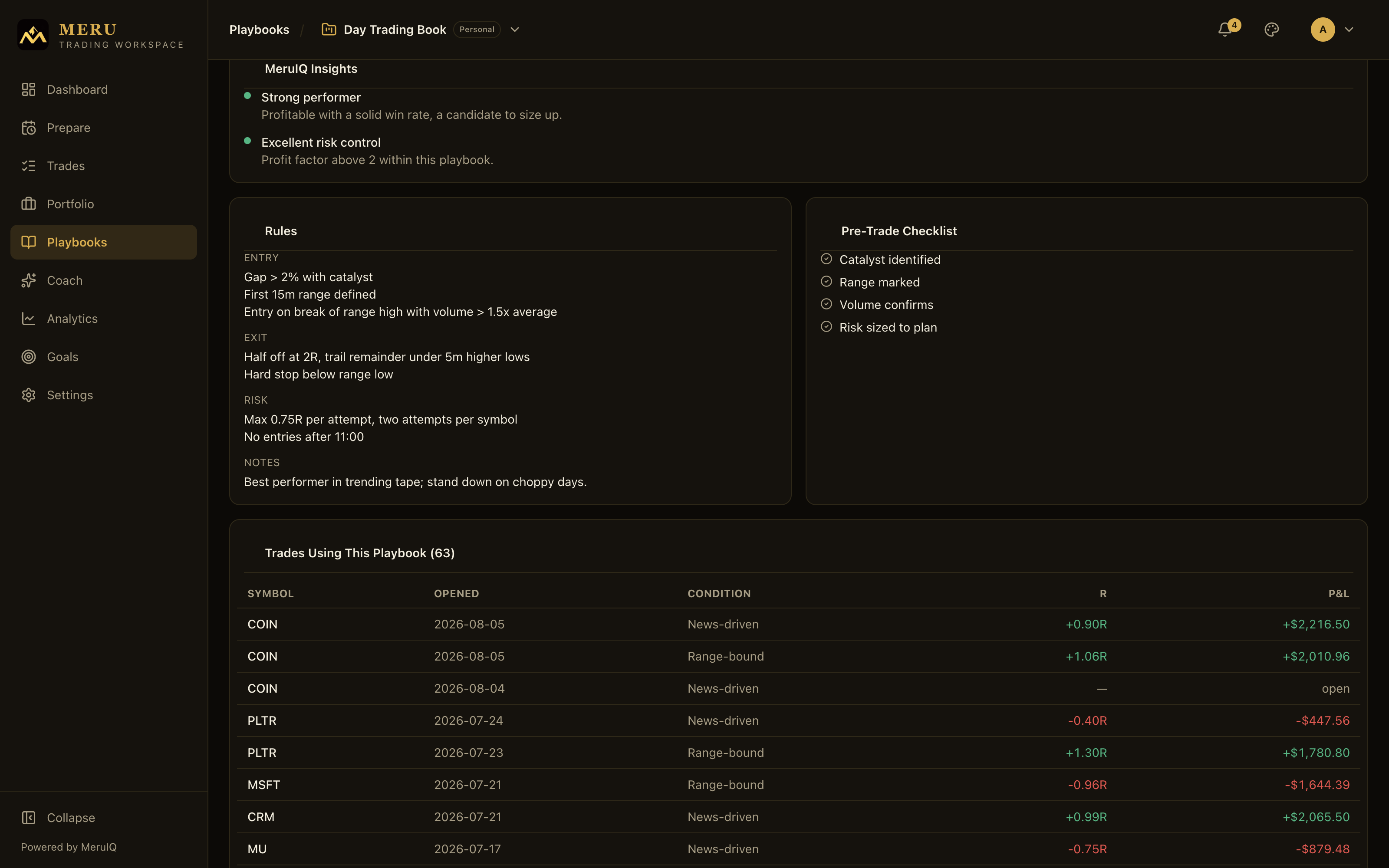
Findings computed from the playbook's linked trades surface in the MeruIQ Insights card on the detail page, and via the sparkles button on each card. Each insight has a title, a plain-English description, and a severity dot: green for a positive finding, amber for a warning, neutral for informational. From the card list, the insights dialog also opens with a WHERE IT WORKS - NET P&L BY MARKET CONDITION summary at the top. If nothing appears yet, link closed trades to the playbook first.
Linking playbooks to trades
A playbook only earns its statistics through the trades you link to it. There are three ways to link:
- When recording a trade: the New trade dialog has a Playbook selector listing your active playbooks. Choose one and its PRE-TRADE CHECKLIST appears right in the dialog with a running count (for example 2/4). Tick what you verified before entering; the ticks are saved on the trade.
- From the trade detail page: open a trade, click Edit, and set the Playbook field. A trade keeps its playbook even if that playbook is later archived (shown with an "(archived)" suffix).
- In bulk from the Trades page: select multiple rows and click Assign playbook to link or clear the playbook on all of them at once.
Once a trade is linked, its detail page shows a Pre-trade checklist card with the playbook's items. If you didn't tick them at capture, the card notes: From playbook "name". Tick what you verified before entering. The ticks are stored as a snapshot on the trade, so later edits to the playbook's checklist never rewrite history.