
Help Center / Getting Started
Getting Started
Everything you need for your first session: creating an account, signing in, getting to know workspaces, and finding your way around.
Create your account
The sign-in page is the front door to the app. New traders create an account right from it.
- On the sign-in page, click New to the Workspace? Create an account. The heading changes to Create your account.
- Enter a Display name. This is the name shown on your account menu and to teammates. It's optional: leave it blank and the Workspace uses the part of your email before the @.
- If a partner referred you, enter their code in Referral code (optional). Arriving through a referral link fills it in for you; the code only records who introduced you and changes nothing about your account or price.
- Enter your Email. You'll use it to sign in and to get password reset links.
- Choose a Password of at least 8 characters.
- Click Create account. You land on your Dashboard immediately, with a first workbook named My Trading Workspace already created for you.
Your address starts out as a claim. A slim banner above every page reads Verify your email, we sent a link to your address, with a Resend the link button. Open the email titled Verify your Meru Trading Workspace email and click Verify my email; the link works once and expires in 48 hours. Nothing is blocked while you are unverified, and the banner disappears as soon as the inbox answers. Completing a password reset, or signing in with Google on the same address, verifies it too.
Sign in with email and password
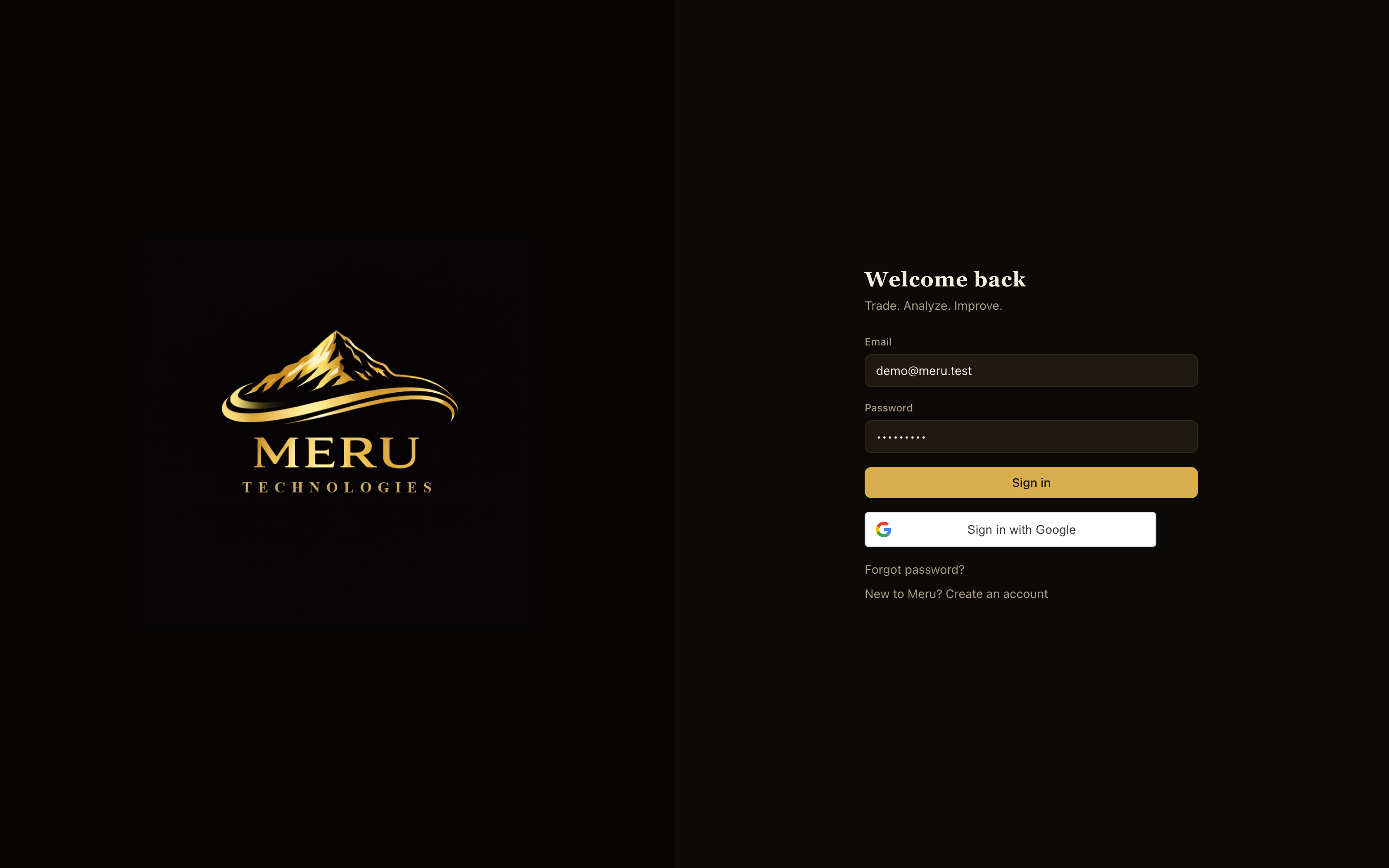
- Open the app. If you're not signed in, the Welcome back page appears.
- Enter your Email and Password.
- Click Sign in. If either value is wrong, an error appears under the form so you can try again.
If you're already on the account creation form, click Already have an account? Sign in to switch back.
Sign in with Google
Below the email form on both the sign-in and account creation pages of the web app, a Google sign-in button lets you use your Google account instead of a password. Accounts created this way arrive verified. Google sign-in is not offered in the phone and desktop apps yet; there, sign in with your email and password.
- Click the Google button under the form.
- Pick your Google account in the Google prompt and approve.
- You land on your Dashboard. No Workspace password is needed for Google sign-ins.
Forgot your password
- On the sign-in page, click Forgot password?. The heading changes to Reset your password.
- Enter your Email and click Send reset link. If that address has an account, a reset link is emailed to you.
- Open the email and click the link. The app opens on a Choose a new password page.
- Enter a New password (at least 8 characters) and click Set new password.
- You are returned to the sign-in page with a confirmation. Sign in with your new password.
Workspaces: your trading books
A workspace is a self-contained trading book. Each workspace has its own trades, statistics, playbooks, goals, and dashboard layout, so results from different styles never mix. Many traders keep one book per strategy, for example a Day Trading Book and a Swing Book. Personal workspaces belong to you alone; if you join a team, organization workspaces appear alongside them.
The workspace switcher
The switcher sits in the top bar of the Dashboard, next to the page title. It always shows the name of the active workspace with a Personal or ORG badge, so you always know which book you're working in. Click it to open the menu.
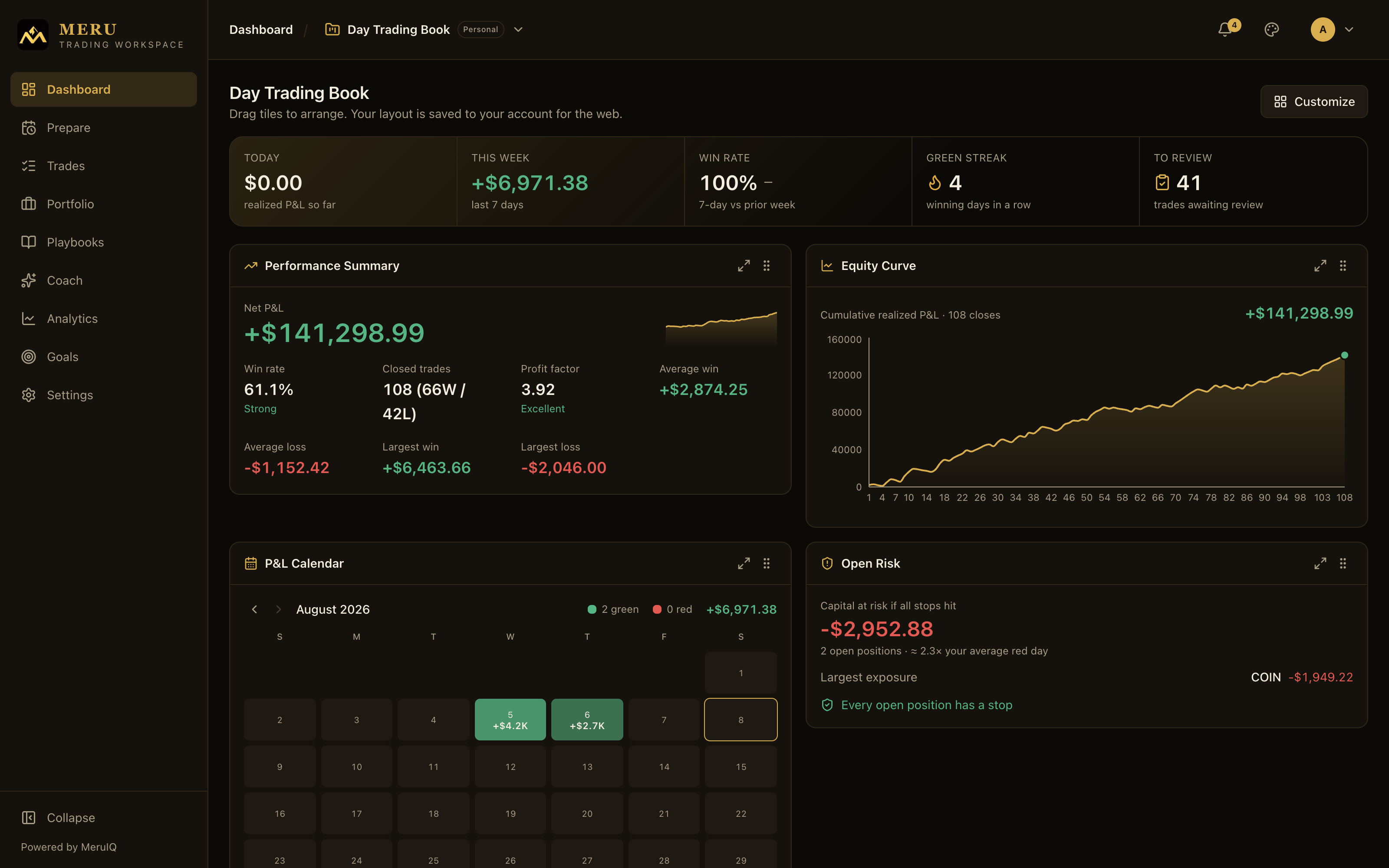
The menu is organized top to bottom:
- WORKSPACES: your personal books, followed by your organization books grouped under each organization's name. A checkmark shows which one's active; click any entry to switch. Books shared with you show their access level next to the name.
- Oversight entries: if you lead a team, rollup entries such as an organization or desk with ROLLUP badges, and individual traders' books with VIEW badges, appear below your own books. These open read-only oversight views of your team's results, covered in Teams & Organizations.
- New workspace and, for books you own, Rename and Share actions at the bottom.
Create or rename a workspace
- Open the switcher and click New workspace.
- Enter a Name, for example Swing Book.
- If you belong to any organizations, a Where selector appears. Choose Personal for a private book, or pick an organization. Organization books also need a Desk; the first desk is preselected.
- Click Save. The new workspace becomes available in the switcher.
To rename the active workspace, open the switcher and click Rename (shown only on workspaces you own), edit the Name, and click Save. The rename dialog also shows who created the workspace and when it was last modified.
The left navigation
The rail on the left is how you move between sections. In order:
- Dashboard: your performance at a glance, with customizable tiles. See Dashboard.
- Prepare: pre-market routine, watchlists, and session planning. More in Market Prep.
- Trades: your trade log, journaling, and reviews. Details in Trades.
- Portfolio: open positions and holdings, covered in Portfolio.
- Instruments: what your trades are about, with each ticker's symbol history, identifiers and corporate actions. See Instruments.
- Playbooks: your setups and their rules, linked to trades. Full rundown in Playbooks.
- Coach: MeruIQ coaching built from your own record. See Coach & Goals.
- Analytics: deeper statistics across any date range. More on that in Analytics.
- Goals: monthly targets and progress tracking.
- Settings: account, plan, and preferences. See Settings & Billing.
- Affiliate: appears only for affiliate partners, and opens the partner portal.
Notifications
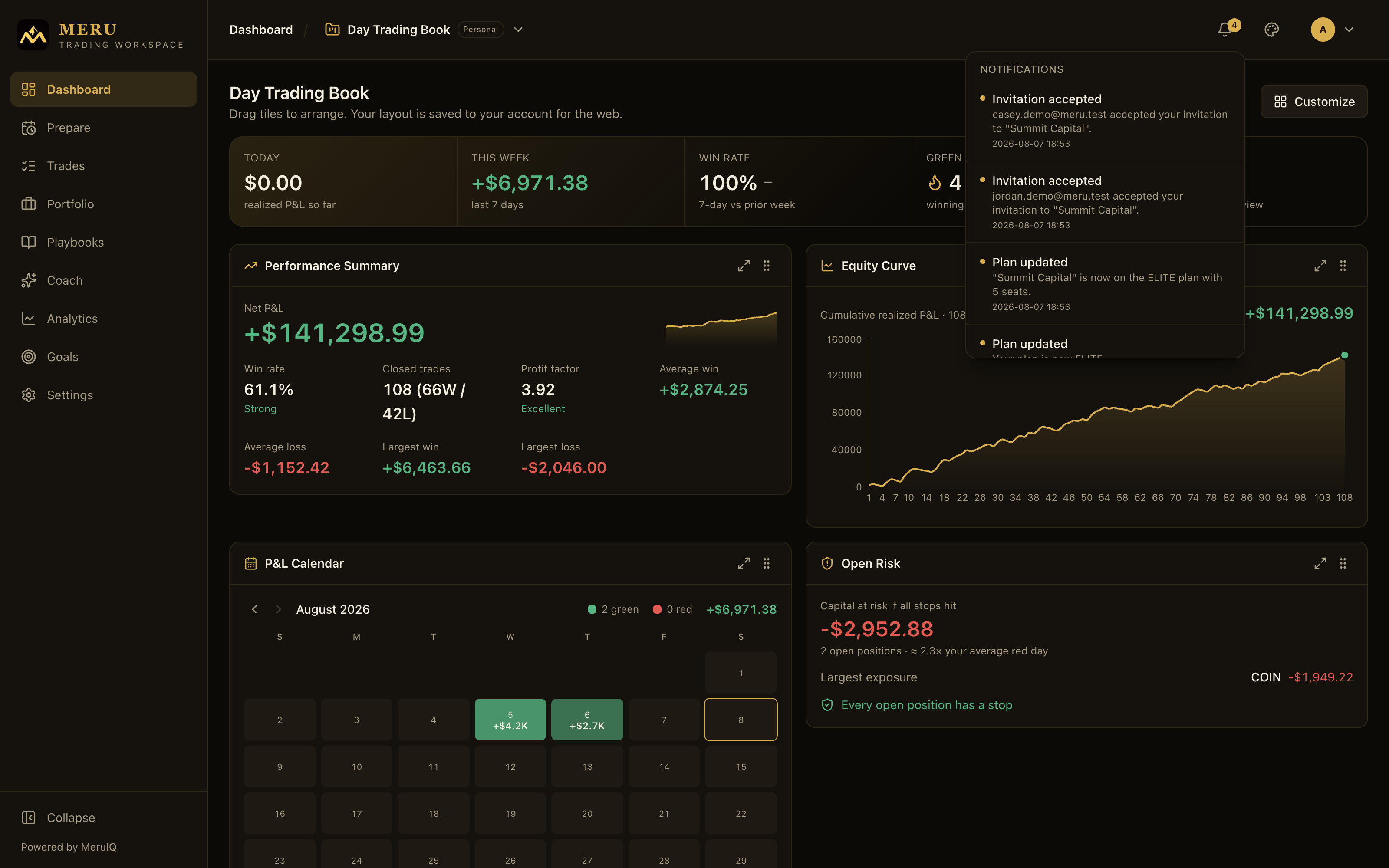
The bell in the top bar collects your notifications: alerts you set, team activity, and account events. New notifications arrive live while the app is open. Click the bell to read them. Choose which categories reach the bell under Settings. Left of the bell sits a ? button, Help & Support, which opens this help center; right of it you'll find the theme picker and your account menu with your name, email, plan badge (with the tier's mark), and Sign out.
On the Trades and Analytics pages the top bar also carries an All workspaces toggle. It widens the page to every workbook you own; click it again (it then reads, for example, Day Trading Book only) to return to the active book. It resets to the active book on each visit.
Plans in brief
Meru Trading Workspace has three plans, named for the climb. Base Camp is free: the journal, broker imports, one workbook, the dashboard, market prep, and analytics over the last 90 days. Ascent adds MeruIQ insights and nudges, goals, more workbooks and playbooks, all-time analytics, custom themes, and sharing your workbooks. Summit removes the limits and adds MeruIQ Coach with the weekly review. Teams and organizations subscribe per seat. Your current plan shows as a badge on your account menu; anything above your plan shows an offer in its place rather than an error. Upgrading happens in Settings; the full comparison is under What each plan includes.
The mobile and desktop apps
The same account works in the MeruIQ app for iPhone, Android, macOS and Windows. Inside, the app carries the Meru Trading Workspace lockup; on your home screen it is the MeruIQ icon. Sign in with your email and password (the app remembers the address for next time). Five tabs run along the bottom on a phone, or down the side on a tablet or desktop: Home (the dashboard, with the workspace switcher in its title and the Prepare and notification buttons in its bar), Trades, Stats, Playbooks, and Settings. The Daily Journal, Weekly Review, MeruIQ Coach and Goals open from the Discipline & Consistency tile on Home. Whatever you record on one device is on the others the next time they come to the foreground. Device-specific protections, such as the Face ID app lock, are described under Security settings in the mobile app.