
Help Center / Trades
Trades
The Trades page is your journal's core. Log stocks, ETFs, options, futures, forex and funds by hand or import them from your broker, browse and filter the trade log, then open any trade to review its full story: from planned risk through exit, checklist, grade, and screenshots. This chapter also covers option strategies, corporate actions, and the Instruments page that keeps a ticker's history straight.
Logging a trade
Click New trade at the top right of the Trades page to record a trade. You can log a position the moment you enter it and close it later, or backdate a finished trade after the session.
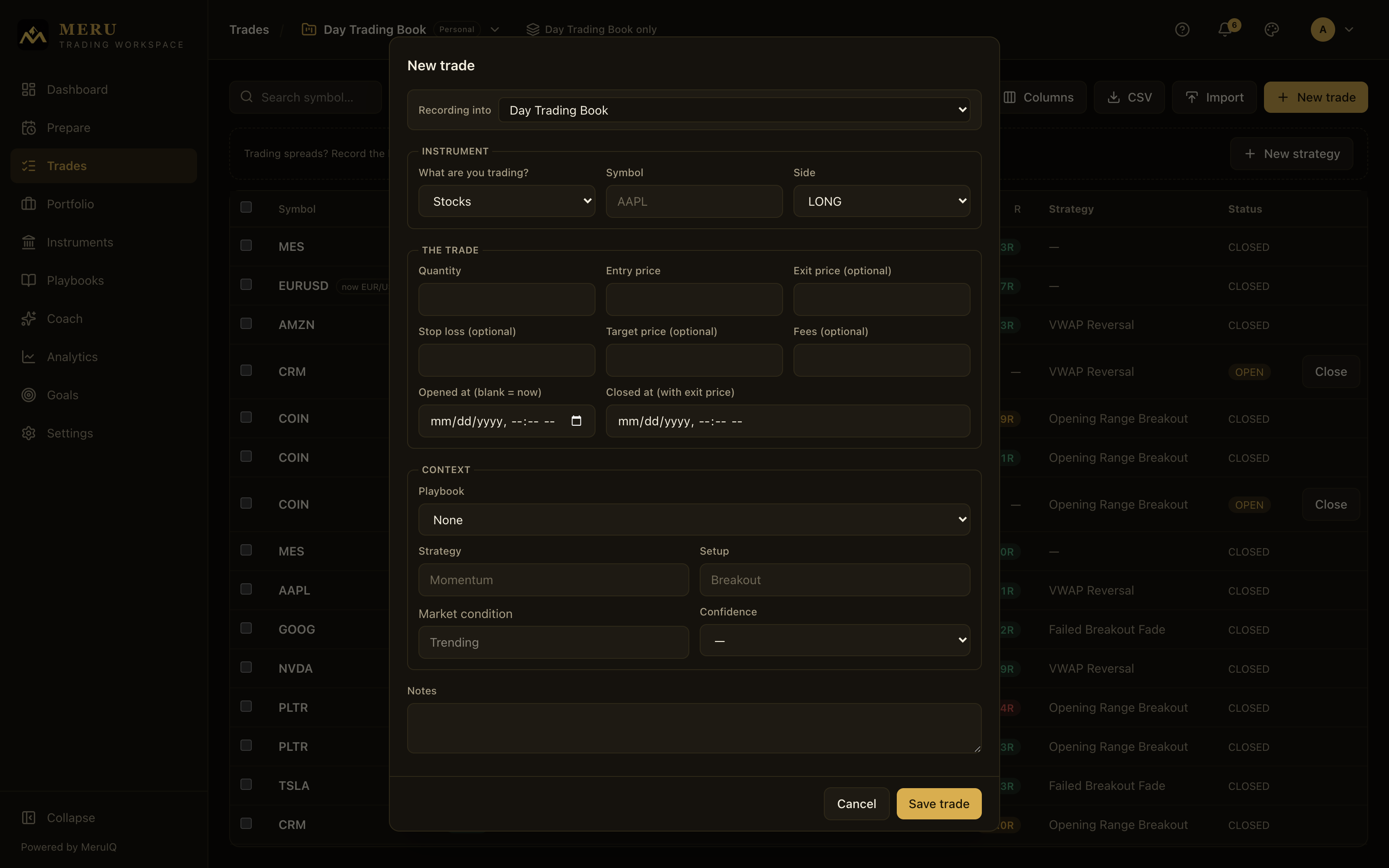
The dialog's fields, top to bottom:
- Recording into: the workbook this trade is saved to. It is pre-filled with your active workspace, and you can switch it right here. Workbooks that belong to an organization are tagged ORG.
- Symbol (required): the ticker, for example AAPL. It is stored uppercase.
- Side: LONG or SHORT.
- What are you trading? (required): Stocks, ETFs, Options, Futures, Forex or Funds. Pick this first: it changes what the rest of the form asks you for, and it can't be changed afterwards, because the trade's profit, loss and risk are all worked out from it. To correct a mistake here, delete the trade and enter it again. The form remembers the class you used last in each workbook.
- Quantity (required): how many you bought or sold. The label follows the class: shares for stocks and ETFs, Contracts for options and futures, Lots for forex, Units for funds. Where one unit controls more than one share, the platform multiplies by the contract size to get the real position, and a quiet line under the form shows what it works out to as you type ("2 contracts x 3.50 x 100 = $700 of position"), the quickest way to catch a mis-typed entry.
- Contract size: how much one contract or lot controls, asked only where it matters. Options ask Shares per contract, prefilled 100, which is almost always right (split-adjusted contracts differ). Futures ask Contract size with no prefill, because there's no common answer (one point is worth 50 on ES, 5 on MES, 1000 on CL), so you tell us once per trade. Forex asks Units per lot, prefilled 100,000 for a standard lot (10,000 for a mini, 1,000 for a micro). It stays editable while the trade is open and is fixed once you close it, because by then it is part of the realized result.
- Entry price (required): your fill price going in. Options call it Premium per contract, forex Entry rate, funds Cost per unit; the exit field is renamed the same way.
- Exit price (optional): fill this in only when you are logging a trade that is already finished. Leaving it blank records the trade as open.
- Stop loss (optional): your planned stop. This is what makes risk measurable: planned risk is the entry-to-stop distance times your position size (for options and futures, that includes the contract size), and every R-multiple on the platform is computed from it. Log it whenever you have one.
- Target price (optional): your planned profit target. Together with the stop it gives the trade a planned reward-to-risk ratio.
- Fees (optional): commissions and fees, used to compute net P&L.
- Opened at (blank = now): the real open time, for trades recorded after the fact. Leave blank to use the current time.
- Closed at (with exit price): the real close time for a backdated finished trade. It is enabled only once you have entered an exit price.
- Playbook: link the trade to one of your active playbooks. If the playbook has a pre-trade checklist, the checklist appears right in the dialog so you can tick what you verified before entering.
- Strategy: the strategy name, for example Momentum. Used to slice your analytics.
- Setup: the specific setup, for example Breakout.
- Market condition: the environment you traded in, for example Trending. The field suggests common conditions as you type.
- Confidence: how confident you felt going in, 1 to 5.
- Tags: free labels for anything Strategy and Setup do not capture, such as earnings, FOMC day or revenge. Type a tag and press Enter or a comma to add it as a chip; tags you have used before are suggested as you type. Case does not matter: "Earnings" and "earnings" are one tag.
- Notes: anything else worth remembering about the trade.
Click Save trade to record it.
What each asset class asks for
| Class | Size field | Price fields | Contract size | Extra fields |
|---|---|---|---|---|
| Stocks, ETFs | Quantity (shares) | Entry price, Exit price | none | none |
| Options | Contracts | Premium per contract, Exit premium per contract | Shares per contract, prefilled 100 | Call or put, Underlying, Expiry, Strike |
| Futures | Contracts | Entry price, Exit price | Contract size, required, no prefill | none |
| Forex | Lots | Entry rate, Exit rate | Units per lot, prefilled 100,000 | none; the pair itself is the symbol |
| Funds | Units | Cost per unit, Redemption price | none | Distributions received (optional) |
- Options: type the full contract symbol as your broker prints it, for example AAPL 250117C00190000, and the platform reads the underlying, expiry, strike and call-or-put off it; the Call or put selector's first choice is literally From the symbol. Fill the fields in yourself only when your broker's symbol does not carry them.
- Forex: enter the pair, such as EUR/USD. Both currencies are read off it: the quoted one decides what a pip is worth and which currency your profit is in. The preview line under the form counts units rather than money ("2 lots x 100,000 = 200,000 units of EUR"), because the money would be in the quote currency.
- Funds: there is no stop, target, MAE or MFE on a fund position; the form asks instead for Distributions received, the dividends and capital gains paid out while you held it, and the trade reports cost basis, distributions and total return.
Currency. The form has no currency picker. Every trade takes the Default currency and Default market timezone from your Trading preferences; a forex trade overrides the currency with the pair's quote currency. Totals are never mixed across currencies: every dashboard, analytics and risk figure covers one currency at a time and says how many trades in other currencies it left out.
Closing an open trade
Open trades show a Close button at the right end of their row in the trade log. Click it to close the trade without leaving the page:
- Leave Quantity to close (blank = all) empty to close the whole position, or enter a smaller number to scale out (see below).
- Enter the Exit price (required).
- Optionally record Worst price (MAE, optional), the worst price the trade reached while open, and Best price (MFE, optional), the best price it reached.
- Click Close trade. P&L, P&L %, and the realized R-multiple are computed for you.
You can also close a trade from its detail page. The Close trade button there also offers Closed at (blank = now), so a late entry can carry its real close time.
Scaling out: partial exits
Closing 40 of an open 100 does not blur the position. The 40 become their own CLOSED trade with its realized P&L, while the original row stays OPEN at 60. Both trades get a Trade Story chapter that ties them together: Split from an open AAPL position on the new trade, Scaled out of AAPL on the one that stays open. Broker imports that sell part of a position behave the same way, with fees apportioned by quantity.
How an option ends
For an option, the close dialog adds How did it end? with four answers. Sold or bought back is the ordinary close and asks for the exit premium as usual. The other three settle at a price the market set, so no price is asked:
- Expired worthless: settles at zero; the premium is the whole result.
- Assigned and Exercised: settle at the strike, and the platform records the stock position the option turned into, long or short according to the contract, in the same workbook with the same strategy, setup and playbook. Both trades get a chapter naming the other: Assigned into AAPL on the option, Assigned into stock on the new position.
On the detail page a settled option shows an Ended row (Expired worthless, Assigned into stock, or Exercised into stock). Its exit can no longer be edited, because the market set it.
Option strategies: spreads as one structure
A vertical spread, a straddle or an iron condor is several option trades that only make sense together. Record them as one structure and the platform tracks the legs as individual trades while reporting the structure's own numbers. A panel above the trade log invites you the first time: Trading spreads? Record the legs as one structure and see its debit, its defined risk, and how it did.
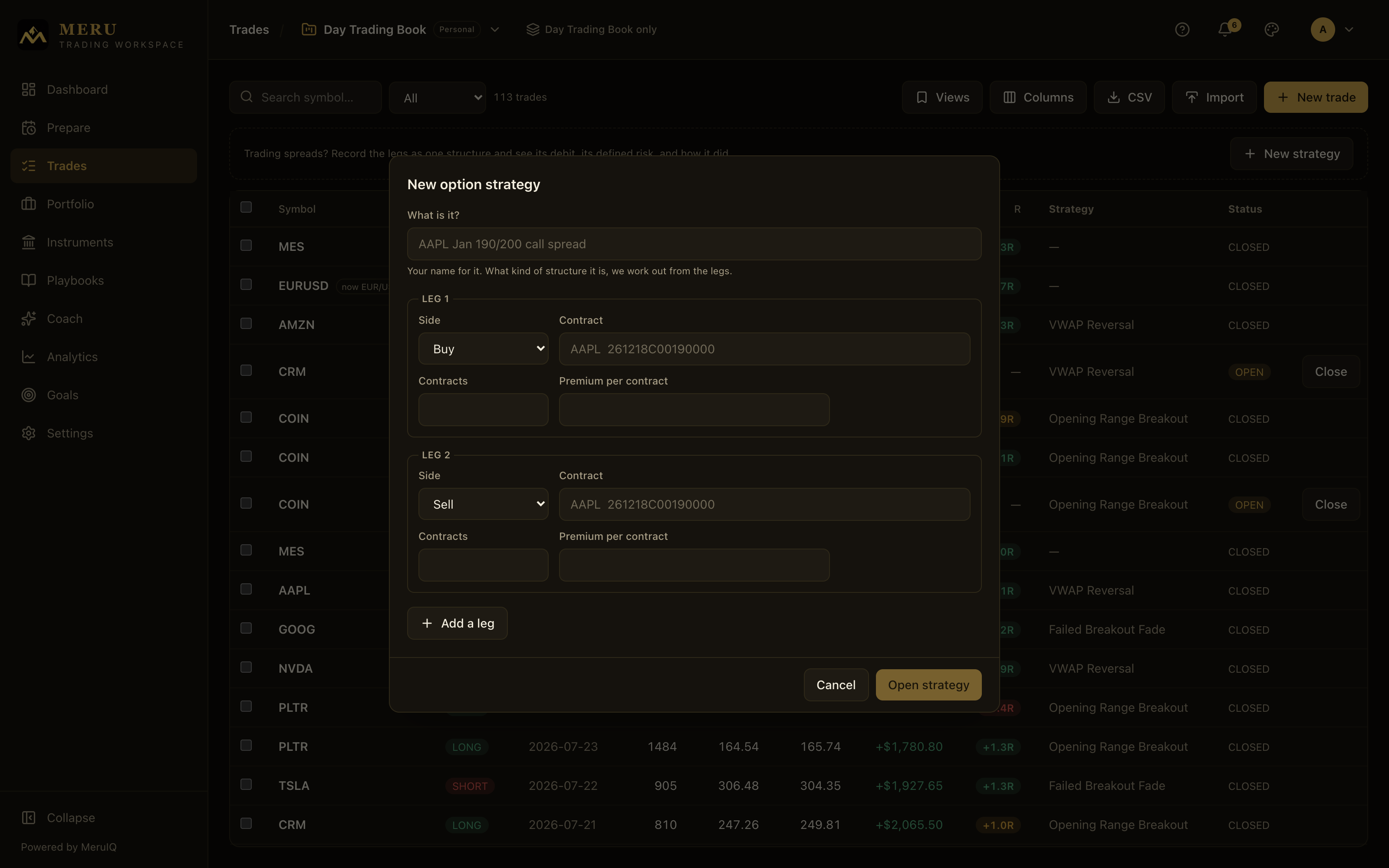
- Click New strategy. In What is it?, give the structure your own name, for example AAPL Jan 190/200 call spread. What kind of structure it is, the platform works out from the legs.
- Fill in Leg 1 and Leg 2: Side (Buy or Sell), the Contract symbol, Contracts, and Premium per contract. Click Add a leg for a third or fourth leg.
- Click Open strategy. Each leg appears in the trade log as its own option trade, and the structure appears in the Option strategies table.
The table shows each structure's Shape (Vertical spread, Straddle, Strangle, Calendar, Iron condor, or Custom), its Debit / credit, Max risk, Max reward, Result and Status. Where a shape has no bounded risk, the cell says not defined rather than borrowing a number. A structure's defined risk is what the Portfolio and Open Risk figures count, once for the spread rather than once per leg. Close the legs the way you close any option; the structure closes when its legs do.
Importing broker history
Click Import next to New trade to bring in trades from a broker export instead of typing them. The file can be a CSV or an Excel workbook (.xlsx or the older .xls), and you do not need to know which template it is: the dialog reads the file and works out the broker.
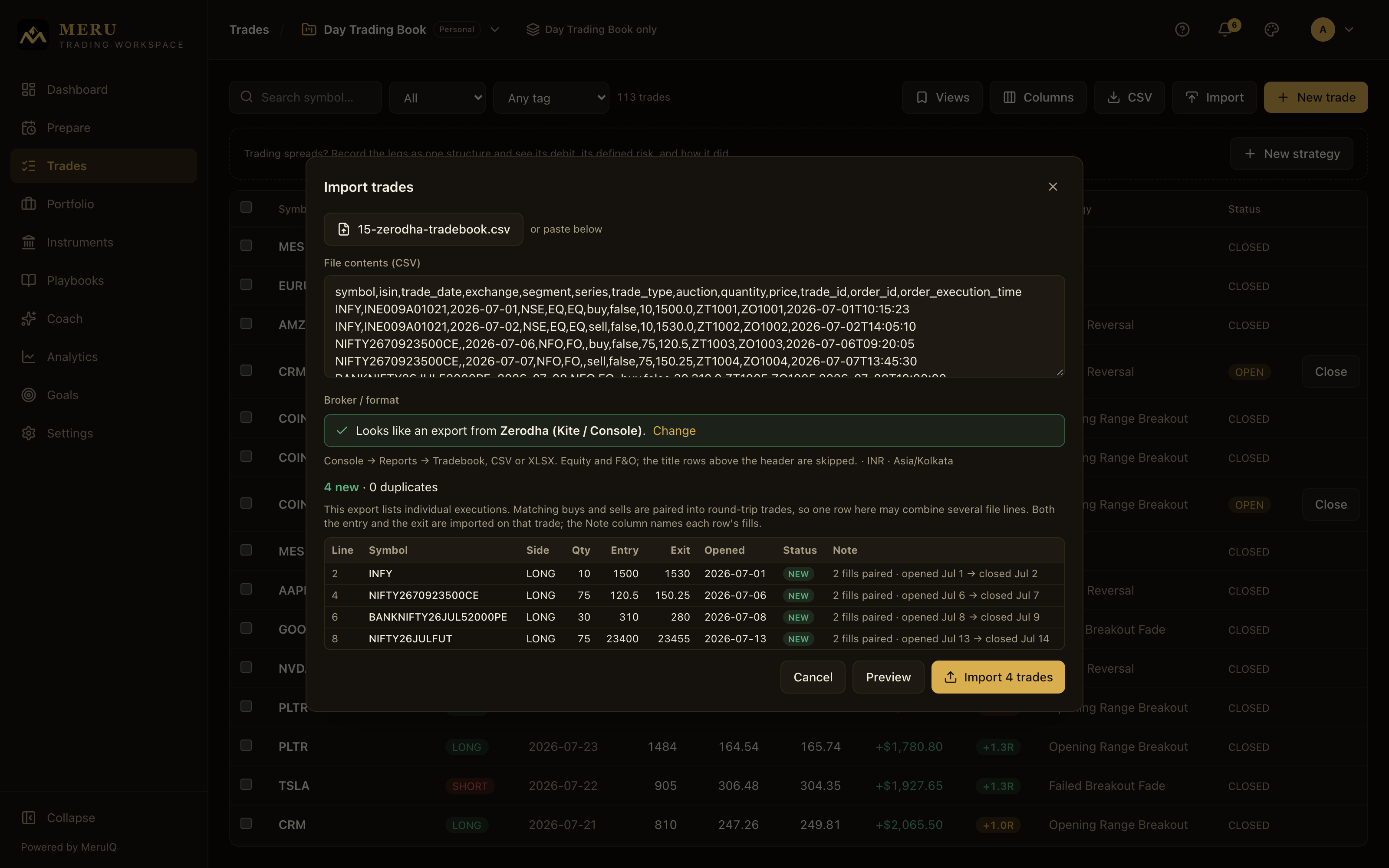
- Click Choose file (CSV or Excel) and pick the export, or paste its contents into the File contents box. An Excel workbook is read as it is; account details some brokers print above the header are skipped, and the rows appear in the box as text.
- Check the Broker / format line. When the file's headers match one broker it reads Looks like an export from Zerodha (say) with a Change link; when several brokers use the same headers it offers a short row of choices; and when nothing matches you pick from the full list, which is grouped into India, United States and Generic templates, filters as you type, and puts the brokers you have imported from before at the top. A short description under the name says what each format expects and, for an Indian broker, that the file is read in rupees on Indian time. The presets are: Workspace CSV (trade-level) and Generic fills (execution-level); for the United States, Robinhood, Fidelity, Ally Invest, Alpaca, Interactive Brokers, Schwab / thinkorswim, Tradovate and NinjaTrader; for India, Zerodha (Kite / Console), Groww, Angel One, Upstox, Dhan, INDmoney and Fyers.
- Click Preview. Every row is shown with its fate before anything is saved: NEW (will be imported), CLOSES OPEN (closes a trade already open in your journal), DUPLICATE (already imported earlier), CHECK (the file's own amount column disagrees with its price and quantity; see below), SKIPPED (not a trade, for example dividends or transfers), or ERROR (unreadable row, with the reason in the Note column). The Line column matches the line numbers in Excel or a text editor, and a Qty cell carries an x100 suffix wherever a contract size applies, so a hundredfold misread is visible before anything is written.
- Answer the questions the preview raises (dates, columns, amounts, corporate actions; each is explained below). The preview re-runs after every answer.
- Click Import. The button names exactly how many trades it will create. An Import complete screen then confirms trades imported, duplicates skipped, and unreadable rows.
What the preview may ask you
- How dates are read. The dialog always says how it reads the file's dates and why: These dates are read as month/day, with the row that proved it. When a file is ambiguous (every date could be either order) it asks instead: How should these dates be read?, showing the same date spelled out both ways, for example Jul 6, 2026 and Jun 7, 2026. Pick the right one and the Opened column updates before anything is imported. A file that mixes both orders is flagged so you can choose the one most of your trades use.
- Missing columns. If a required column such as Symbol or Quantity cannot be found, a mapping block lets you point each field at the right column of your file. The mapping is remembered per format: set it once and the next file in that format is read the same way.
- The broker amount check. When a file carries its own amount column, the preview multiplies price by quantity and compares. Rows that disagree are marked CHECK with the reason; the amount column itself is never imported. If the whole file has the same systematic pattern (a broker that prints amounts per contract, say) one button, Accept all and import, clears them together; otherwise tick import anyway? on the rows you have verified.
- A file that disagrees with a position. When the file sells more of something than your journal says you hold, in the proportion of a split, the preview says This file disagrees with one of your positions and offers two readings side by side: It was a corporate action or It was an ordinary trade, each with the consequence spelled out. The reading the evidence favours is preselected. Choosing corporate action records the split as one of your own corporate-action rows and hands the position to the decision queue described under Corporate actions.
Execution-level exports (fills) list one row per buy or sell. For those presets, the fills of one trading day in one direction form a lot with a quantity-weighted average entry, so a trader scaling into a position within a session gets one trade; the first buy on a new day opens a new lot, so an investor who bought the same stock on twenty-four days gets twenty-four trades. Sells close lots oldest first, and a sale that closes only part of a lot splits it into a closed trade and an open remainder. One imported trade may therefore combine several file lines; both the entry and the exit land on the trade, and its notes name the individual fills. The Portfolio page consolidates the open lots of each instrument into one position at their average cost.
Indian brokers
Indian tradebooks are execution-level files: each row is one buy or sell, paired into round trips as described above. They import in INR on Asia/Kolkata time regardless of the currency and market timezone set for your account, and the trading day is the Indian one. Futures and options are recognised from the file's segment column together with the symbol: NIFTY24MAR22000CE is a monthly call, NIFTY24O1522000CE a weekly one, NIFTY24MARFUT a future. These files state quantities in units (a NIFTY lot shows as its lot size, not as 1), so the contract size recorded is 1 and no x100 suffix applies. Charges are not part of a tradebook, so fees import as zero; the contract note holds them. INDmoney's Order report is the exception in two ways: it is an .xls file, and its US-stocks edition prices in dollars, which the dialog reads from the Price ($) header and imports as USD. Where a file's dates could be read either way (01-07-2026), an Indian broker's file is read day first, and the date banner says so.
Continuing a previous import: just export again from your broker and import the new file. Rows you already imported are flagged DUPLICATE and skipped, so only the new activity comes in. If a flagged row really is a distinct trade, tick import anyway? on that row in the preview to include it. A later file that closes a position an earlier file opened shows the row as CLOSES OPEN rather than creating a second trade.
Import history and undoing an import
An Import history section at the bottom of the dialog lists your previous imports into this workspace with their date, file, format, and counts, and an Undo link on each. Undo opens Undo this import?, which states exactly what will happen, trade by trade: rows marked DELETED came entirely from the file and come back if you import it again; rows marked REOPENED are trades the file only closed, so the trade stays and only that exit is taken back. Where you added work after importing (closed the trade yourself, wrote a review, added notes) the dialog says so, because that work does not come back. Click Undo import to confirm or Keep the import to leave it. A trade the file scaled out of gets its quantity back, with a story chapter recording the return.
The trade log table
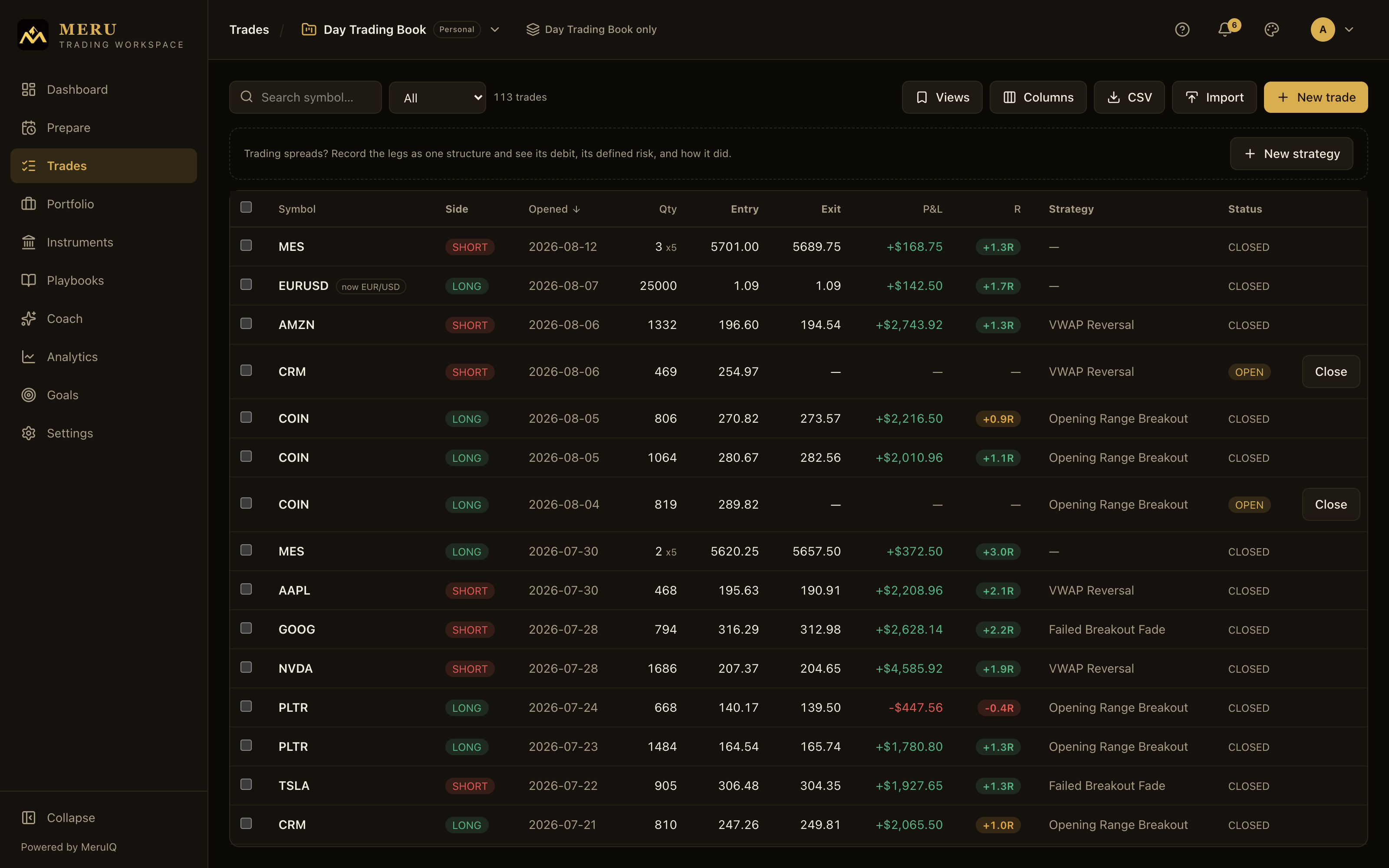
The table shows one row per trade. Symbol is always visible; the default columns beside it are Side (LONG or SHORT), Opened (the open date), Qty, Entry, Exit, P&L (realized profit or loss), R (the realized R-multiple, your result expressed in multiples of the planned risk), Strategy, and Status (OPEN or CLOSED). When you are viewing more than one workbook at once, a Workbook column names each trade's book as well. A Qty cell shows an x100 style suffix wherever a contract size applies, which is why ten of something can be $4,000 of exposure.
Two small pills can follow a symbol. now KOF means the instrument has since changed ticker: the row keeps the name you traded under, which is what reconciles against your broker statement, and the pill names today's symbol. as traded means a corporate action fell inside the trade (hover it for the detail, such as spans a 10-for-1 split); its prices are recorded as you traded them, not adjusted. Searching by symbol matches either name.
Click a column header to sort by it; click again to reverse the direction. Sortable columns include Symbol, Opened, Qty, P&L, Net P&L, P&L %, and R.
Above the table:
- The Search symbol box narrows the log to matching tickers as you type.
- The status filter beside it shows All, Open, Closed, or To Review (closed trades you have not graded yet). A tag filter next to it, Any tag by default, lists every tag you have used with its count and narrows the log to trades carrying the one you pick.
- A count such as "Showing 12 of 48" keeps it clear when filters are active.
Views: saving filter combinations
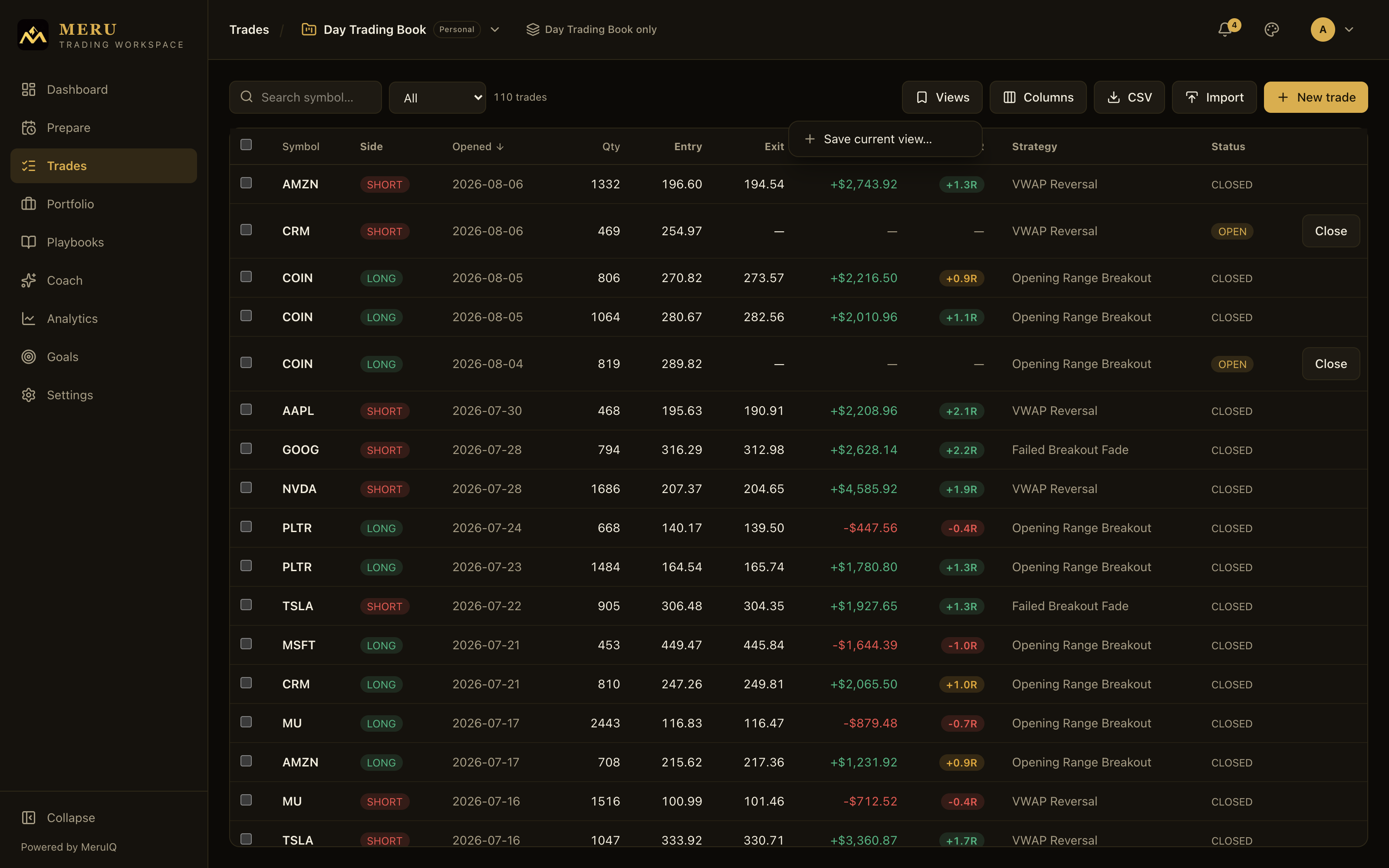
Named combinations of your current search, status filter, sort, and visible columns live in the Views menu:
- Set up the table the way you like, then open Views and choose Save current view.
- Give it a View name, for example "Open longs, R sorted", and click Save view. Saving with an existing name replaces that view.
- Apply any saved view later by picking it from the menu. The trash icon next to a view deletes it.
Saved views are stored with your account, so they follow you across the web app and the mobile app.
Columns: choosing what you see
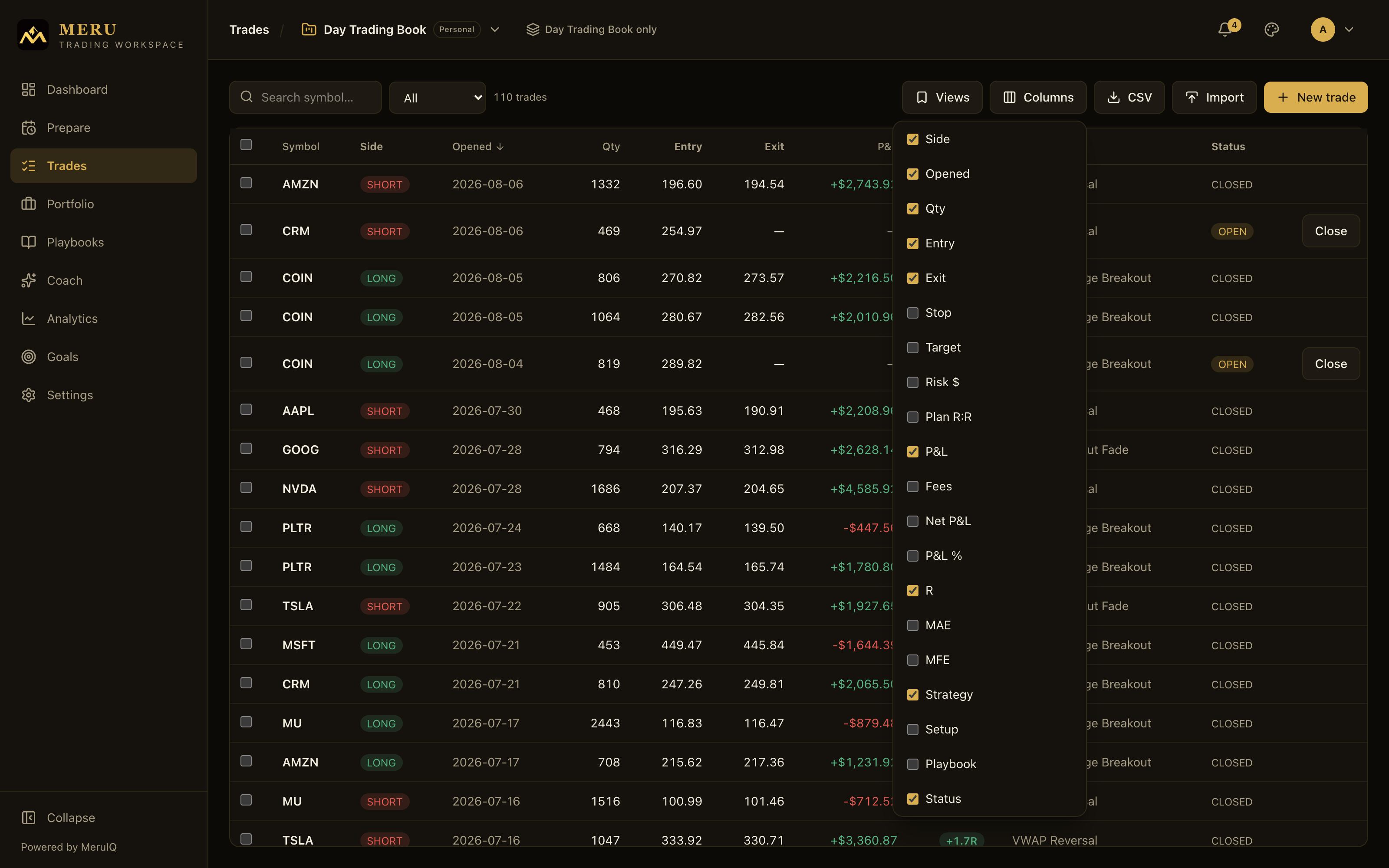
Every available column can be switched on or off from the Columns menu: Side, Opened, Qty, Entry, Exit, Stop, Target, Risk $ (planned dollar risk), Plan R:R (planned reward-to-risk), P&L, Fees, Net P&L (P&L minus fees), P&L %, R, MAE, MFE, Strategy, Setup, Playbook, Tags, and Status. In the Stop column, trades missing a stop get a warning so risk gaps stand out.
CSV export
Downloading the trades currently shown is one click: the CSV button respects your search and filter and exports the complete set of fields regardless of which columns are visible. The file re-imports cleanly through the Workspace CSV (trade-level) preset, so it doubles as a backup. Its columns come in two halves: first everything you entered (symbol, side, asset class, contract multiplier, the option's call/put, underlying, expiry and strike, dates, quantities and prices, fees, currency, strategy, setup, market condition, confidence, tags, MAE, MFE, notes, and an External Id), then the derived figures (status, risk amount, realized and net P&L, P&L %, R multiple, playbook), which are exported to read and never imported. The External Id is what makes a re-import match your existing trades instead of duplicating them. Timestamps are exported exactly as stored so a round trip is byte-faithful.
Bulk actions
Tick the checkbox at the start of any row (or the header checkbox to select everything shown) and an action bar appears with the selection count:
- Assign playbook links all selected trades to one playbook in a single step, or unlinks them by choosing None (unlink).
- Export selected downloads a CSV of just the selected trades.
- Clear drops the selection.
Workspace scope
Like every screen, the trade log follows the workspace scope chip in the header. When it reads, for example, Day Trading Book only, you see that workbook's trades; click the chip to switch to All workspaces and the log widens to every workbook, adding the Workbook column so each row names its book.
The trade detail page
Click any row in the log to open the trade's own page.
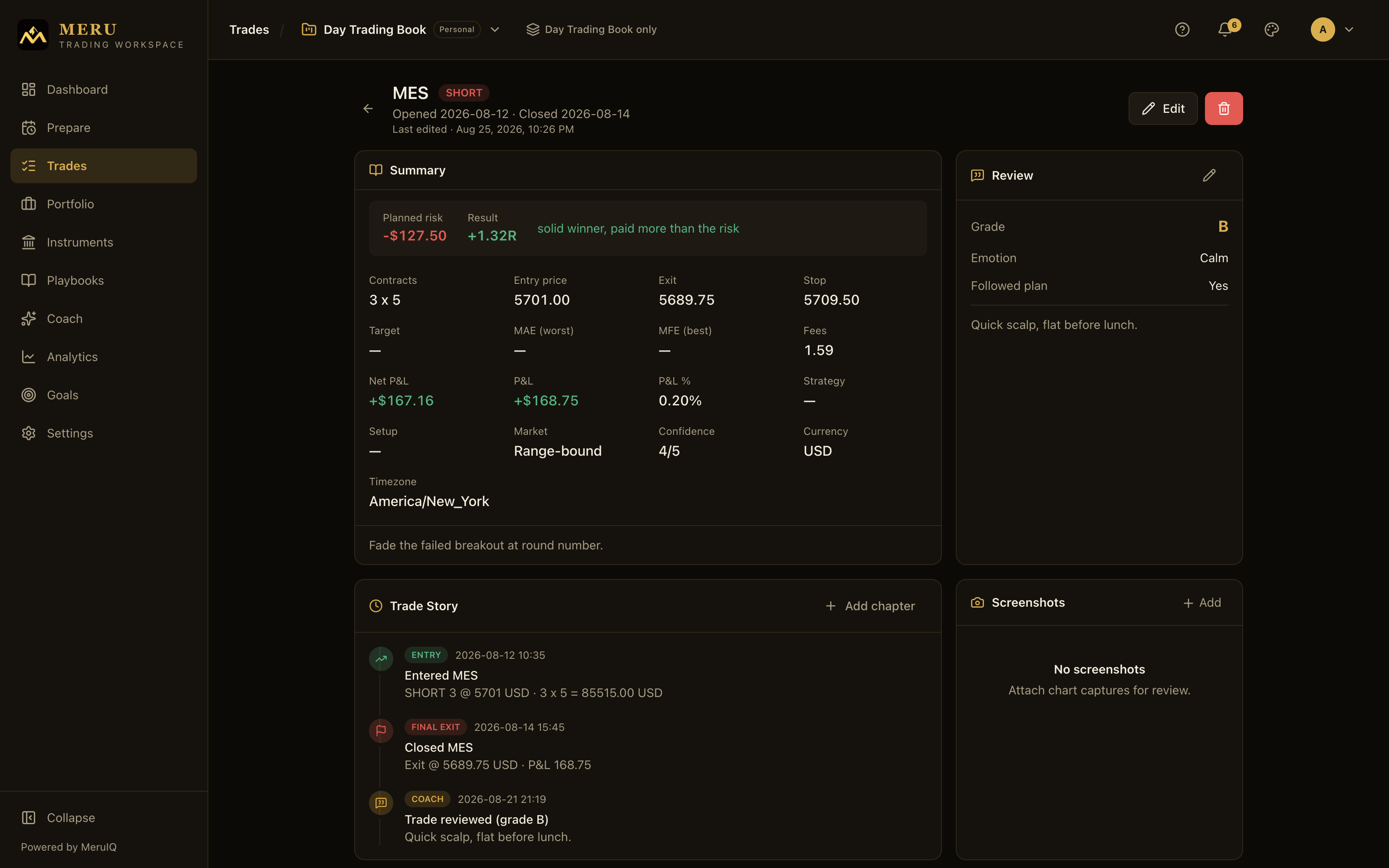
A risk-and-result strip leads the Summary card: Planned risk (the dollars you had at risk, from entry, stop, and quantity), Result (the realized R-multiple), Planned R:R (the reward-to-risk you set up with your stop and target), and Exit efficiency when MFE is recorded (the share of the best available move you captured). A plain-language verdict follows, for example "solid winner, paid more than the risk" or "loss kept to plan". If the trade has no stop recorded, the strip instead shows a No stop on record warning.
Below the strip, the summary lists Quantity, Entry, Exit, Stop, Target, MAE (worst), MFE (best), Fees, Net P&L (P&L minus fees), P&L, P&L %, Strategy, Setup, Market, Confidence, Tags, Currency, and Timezone. Options add Contract (underlying, expiry, strike, call or put), Bias (the directional bias the contract and side add up to), DTE at entry (days to expiry when you entered), and, once settled, Ended. Funds replace the risk rows with cost basis, distributions and total return. Your notes appear along the bottom of the card. The header above shows when the trade was opened and closed, and if someone edited it after creation, a line names who changed it last and when.
Pre-trade checklist
When the trade is linked to a playbook that has a pre-trade checklist, a Pre-trade checklist card lists the playbook's items. Tick what you actually verified before entering; the ticks are saved as a snapshot on this trade. The badge on the card shows your adherence percent for the trade, and these snapshots feed the plan-adherence statistics in your playbook insights.
The Review card
Grading the execution after the trade happens in the Review card. Click the pencil icon to open the review form:
- Grade: A through F, your honest rating of how well you executed (not whether you made money).
- Followed plan: Yes or No.
- Emotion: the dominant feeling in the trade: Calm, Confident, Neutral, FOMO, Fear, Greed, Revenge, Anxious, or Frustrated. The list is the same on the web and in the apps, so a review reads the same on every device.
- Lessons learned: free-form takeaways.
Click Save review. You can reopen the form with the pencil at any time to revise it. Closed trades without a review show up under the To Review filter in the trade log, so nothing slips through ungraded.
The Trade Story timeline
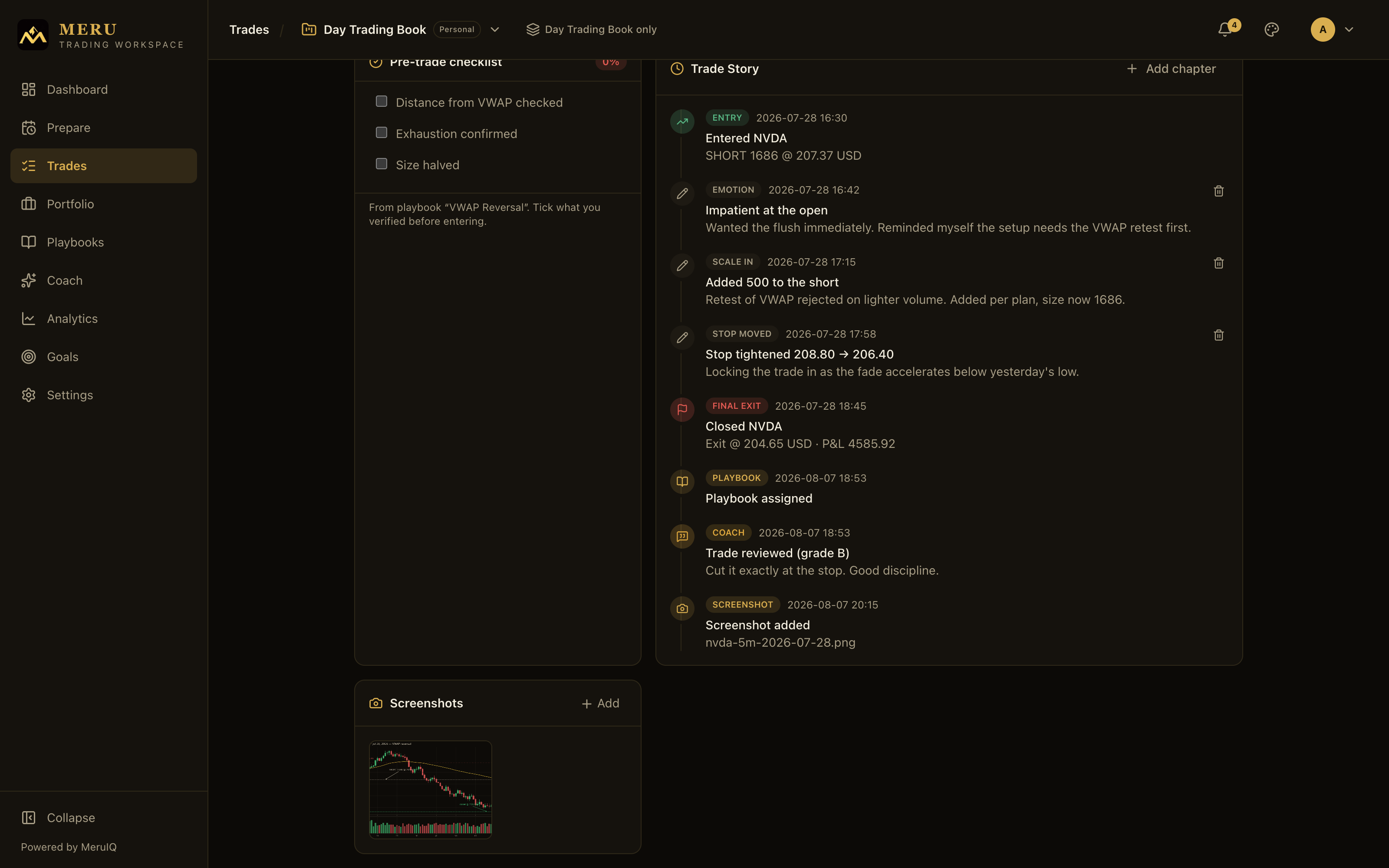
A timeline of the trade's life sits in the Trade Story card. Some chapters are written for you: the entry, the final exit, a playbook being assigned, screenshots added, and coach review events all appear automatically as they happen. The rest are yours to write with Add chapter.
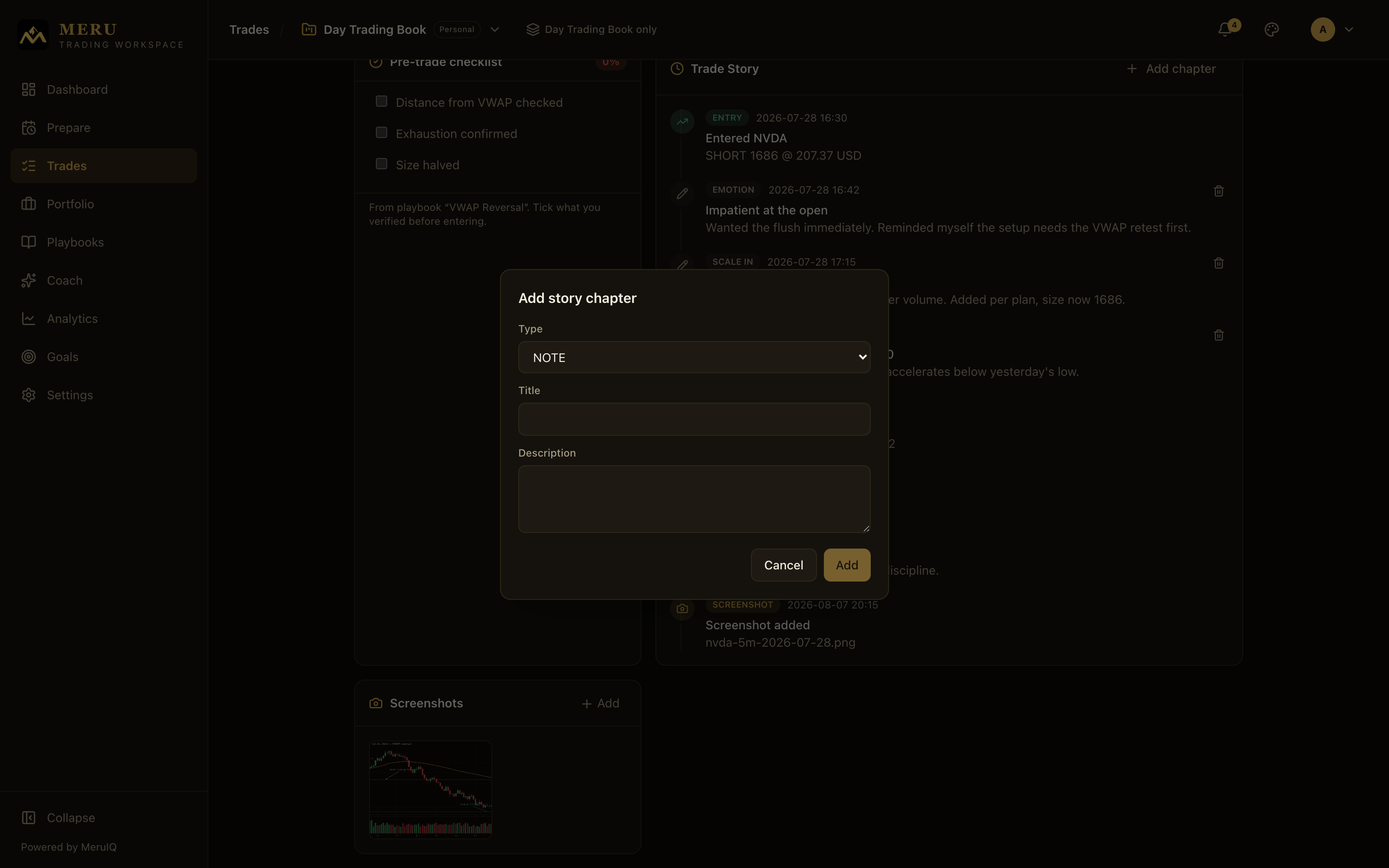
- Click Add chapter on the Trade Story card.
- Pick a Type: NOTE, IDEA, ANALYSIS, EMOTION, NEWS, LESSON, STOP MOVED, SCALE IN, or SCALE OUT.
- Give it a Title and, optionally, a Description, then click Add.
Chapters you added yourself show a trash icon: click it to delete the chapter. To change one, delete it and add it again. System-written chapters can't be removed; they're the trade's factual record.
Corporate actions applied
When you have let the platform restate a position for a split (see Corporate actions), a Corporate actions applied card lists each restatement in plain words: 10 @ 600 became 100 @ 60, the date it was applied, and figures corrected by hand where you overrode the arithmetic. Undo is offered on the newest restatement only, because reversing an older one underneath a newer one would restore figures the newer has already multiplied.
Screenshots and attachments
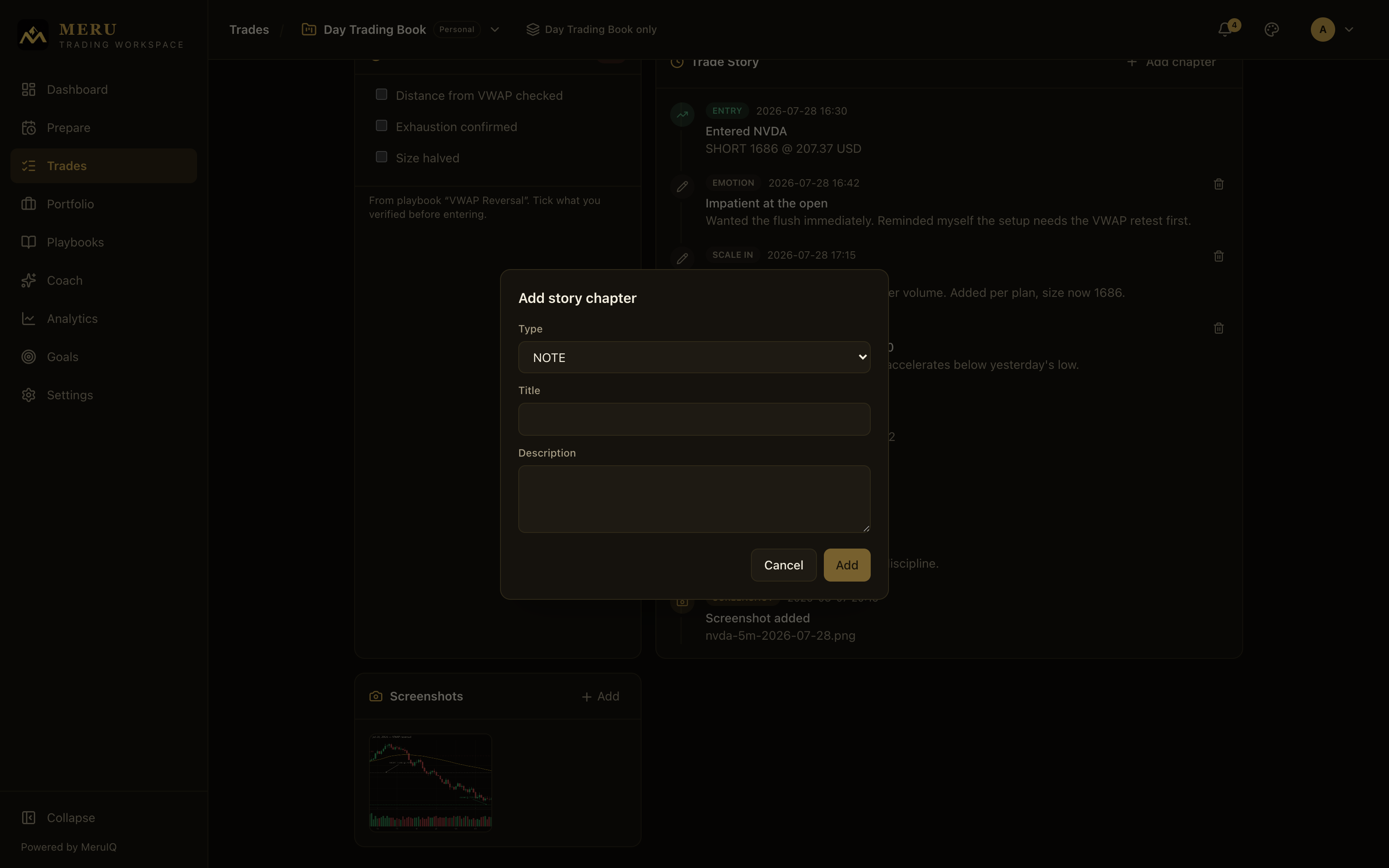
Chart captures and documents for the trade live in the Screenshots card. A line at the top of the card shows how much of your plan's attachment storage you have used, for example 12.3 MB of 100 MB used. Click Add and pick a file: PNG, JPEG, GIF, WebP, and PDF are accepted, up to 25 MB per file. Images show as thumbnails; click one to open it full size in a new tab. Adding a screenshot also drops a chapter into the Trade Story, so the capture sits in context on the timeline.
Editing and deleting a trade
The Edit button at the top of the detail page opens the edit dialog. You can change Stop loss, Target price, Fees, Worst price while open (MAE), Best price while open (MFE), Confidence, Strategy, Setup, Tags, Opened at, Market condition, Playbook, and Notes at any time. Quantity and Entry price can only be changed while the trade is still open; once it's closed, those executed facts and the contract size are fixed, because they are part of the realized result. The dialog also reminds you how the trade was recorded, for example Recorded as Options at 100 per contract. To change this, delete the trade and enter it again.
Correcting a mistyped exit. A closed trade's Exit price and Closed at stay editable in the same dialog. Correcting them recomputes the realized P&L and the day's statistics, and writes a story chapter, Exit corrected on AAPL, naming only what moved: Exit 14 → 15 USD · P&L 300 → 400. The trade stays the same closed trade. An option that expired, was assigned or was exercised settled at a price the market set, so its exit cannot be changed.
Edits are surgical: changing a note, ticking a checklist item or correcting a stop never touches the fields you did not mention, on any device.
The red trash button deletes the trade after a confirmation. Deleting removes the trade together with its story, review, and screenshots, and can't be undone.
Corporate actions: splits, renames and what to do about them
Your entered prices are the record of what you actually did, so the platform never rewrites them on its own. When a split, reverse split, ticker change, merger or spin-off touches an instrument you hold, it records the fact and asks you what your broker did. Actions reach the platform three ways: from the market-data feed (checked whenever prices are fetched and nightly for anything you hold open), from an import file that disagrees with a position in the shape of a split, and from you, on the Instruments page.
An affected open position puts a banner at the top of the Trades page: 1 position needs a corporate-action decision. Your figures are unchanged until you decide. You also get a notification, A corporate action affects a position you hold. Click review to open Corporate actions on your positions, which lists each position with the action (10-for-1 · ex Jun 10, 2024) and a recommendation sentence, then three choices:
- Apply it for me: the platform restates the position and shows the result before you confirm: 10 @ 600 becomes 100 @ 60, the same cost basis. Stop moves to 55. Target moves to 80. If your broker cashed out a fraction, correct the Quantity and Entry price to match your statement, then click Restate this position.
- My broker already did this: your figures already reflect the action; the flag clears and nothing changes.
- Leave it as is: clear the flag without restating.
A position held through several actions is decided once, for all of them together. Where the platform cannot interpret an action with confidence it says Check your broker before changing anything here and withholds the apply option. Closed trades are never restated: they show the as traded pill in the log, and the Analytics page adds a note, Prices are as traded, not adjusted, listing the actions that fall inside the period so you know why entries and exits on those positions are not directly comparable.
Instruments: a ticker is a name, not an identity
The Instruments page in the left navigation (on mobile: Settings, then Reference data, then Instruments) lists what your trades are actually about. When a company changes its symbol, the history here stays attached to the company rather than the string, so KO's trades and KOF's trades are one record. The list shows each instrument's Symbol (with an also KO pill after a rename), Class, Identifiers, Trades, Open positions and Recorded actions. Instruments appear on their own the first time you log or import a trade in them.
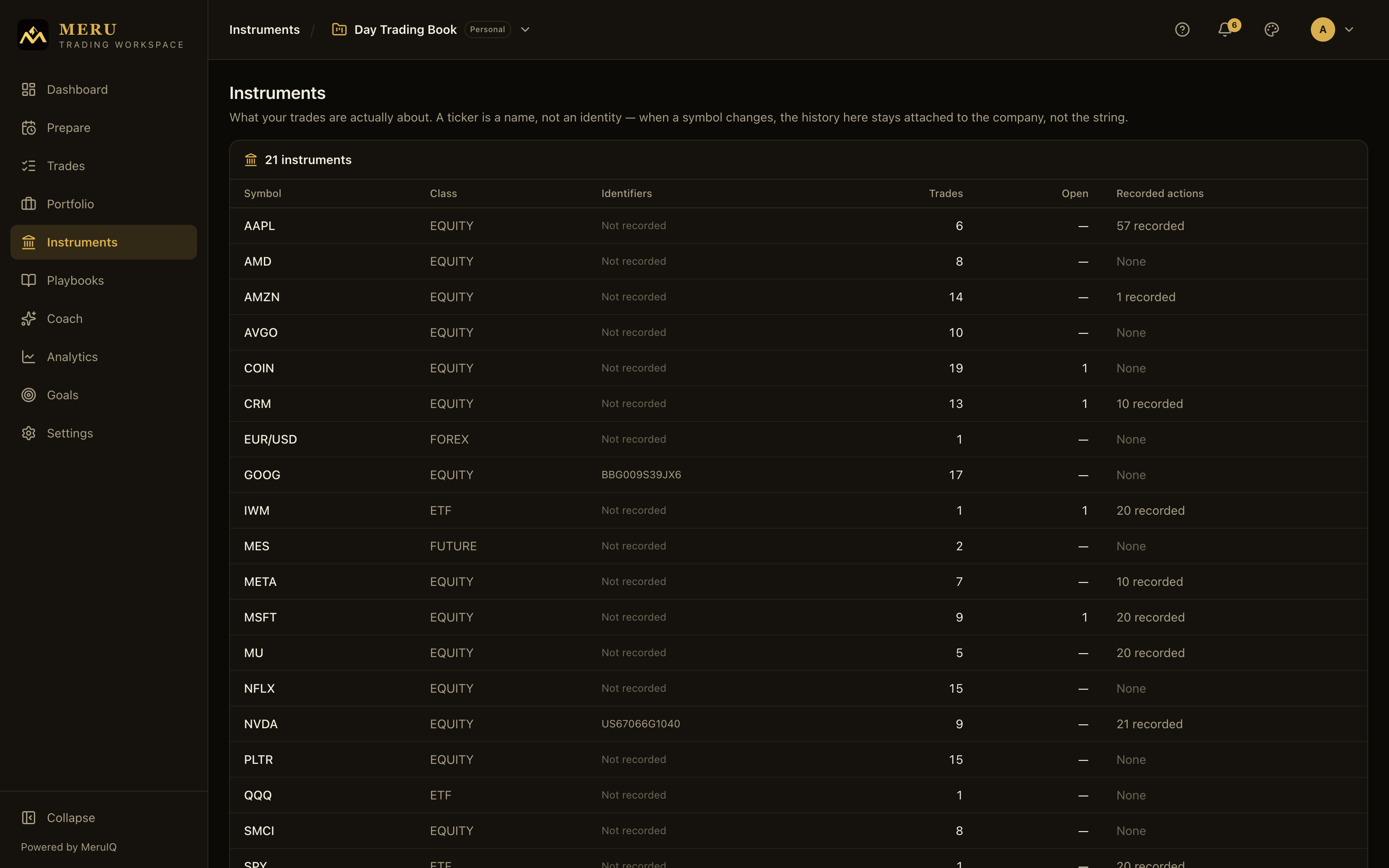
Open an instrument for its detail. A chip states where its identity comes from: Learned from your trades while nothing external has said anything, Identifiers from the reference feed once the overnight reference feed has supplied its name and FIGI, or Checked by Meru Technologies when we have vouched for it by hand. Below sits the Symbol history, one line per period the instrument traded under each name, then two tabs:
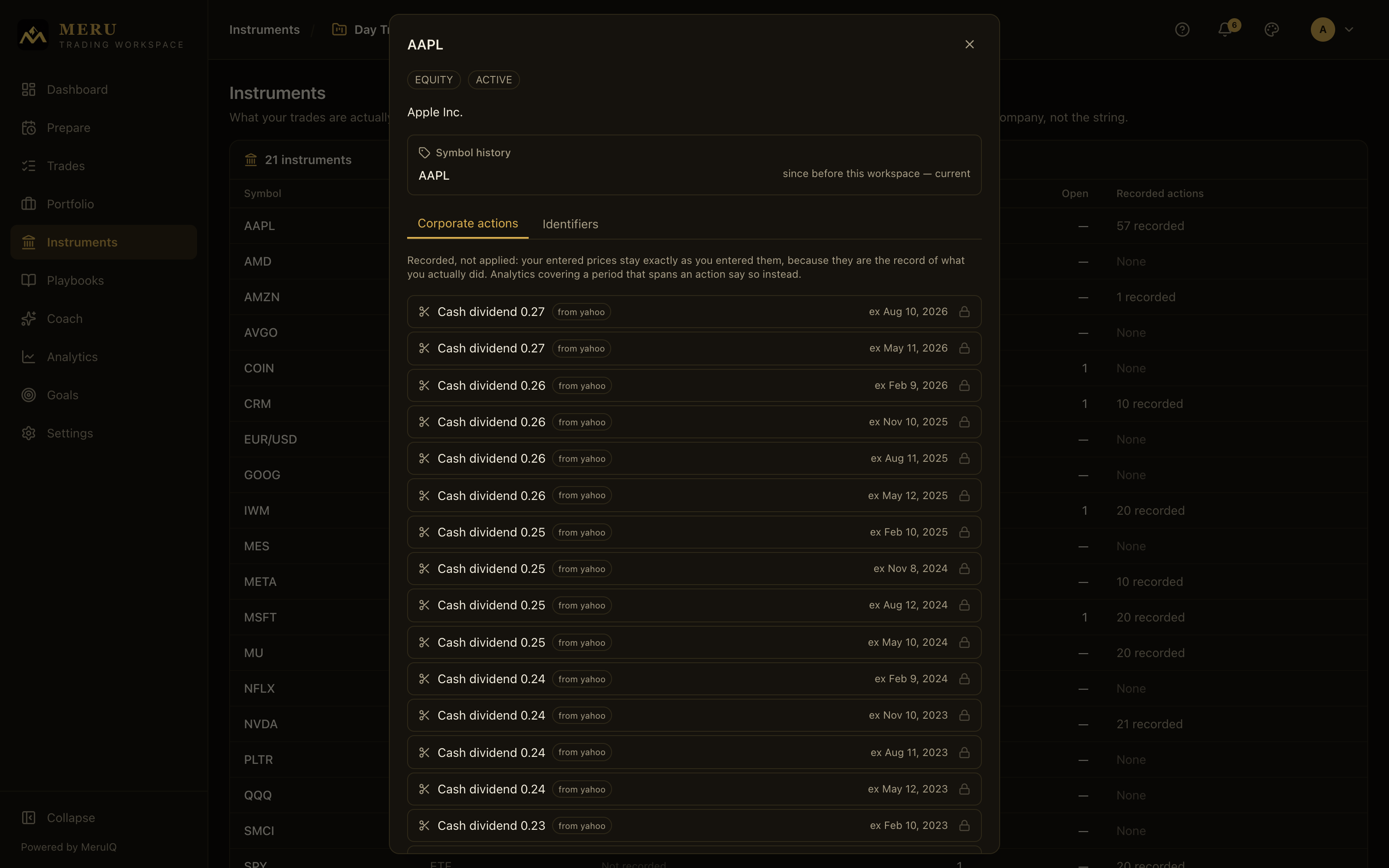
- Corporate actions: every action on record, with its source. Feed-supplied rows are shared market facts and carry a lock; record your own version to override one. To record an action yourself, choose the Action (Split, Reverse split, Cash dividend, Special dividend, Ticker change, Merger, Spin-off, Delisting), the Ex-date, and the figures it asks for (new shares for old, amount per share, or the New ticker, under which future trades join the same history), then click Record action. Recording never changes your prices; it only makes the platform aware, so the decision queue above can ask.
- Identifiers (web): Name, Exchange (MIC), ISIN, CUSIP and FIGI, which let the same holding be reconciled across brokers and data providers. Nothing here is required. Once a reference feed or Meru Technologies has vouched for an instrument, its identifiers are read-only and the tab says why.
Watchlists behave differently from trades on a rename: a watchlist row follows the instrument, so it is quoted under the new symbol and its alerts keep firing, with a now KOF pill explaining the change. A trade record keeps the symbol it was traded under.