
Help Center / Settings & Billing
Settings & Billing
The Settings page is one scrollable stack of cards: your profile and security, appearance, trading defaults, notifications, your subscription and billing history, your organizations, and finally the danger zone. This chapter walks the page top to bottom, then covers what each plan includes and the security settings that exist only in the mobile app.
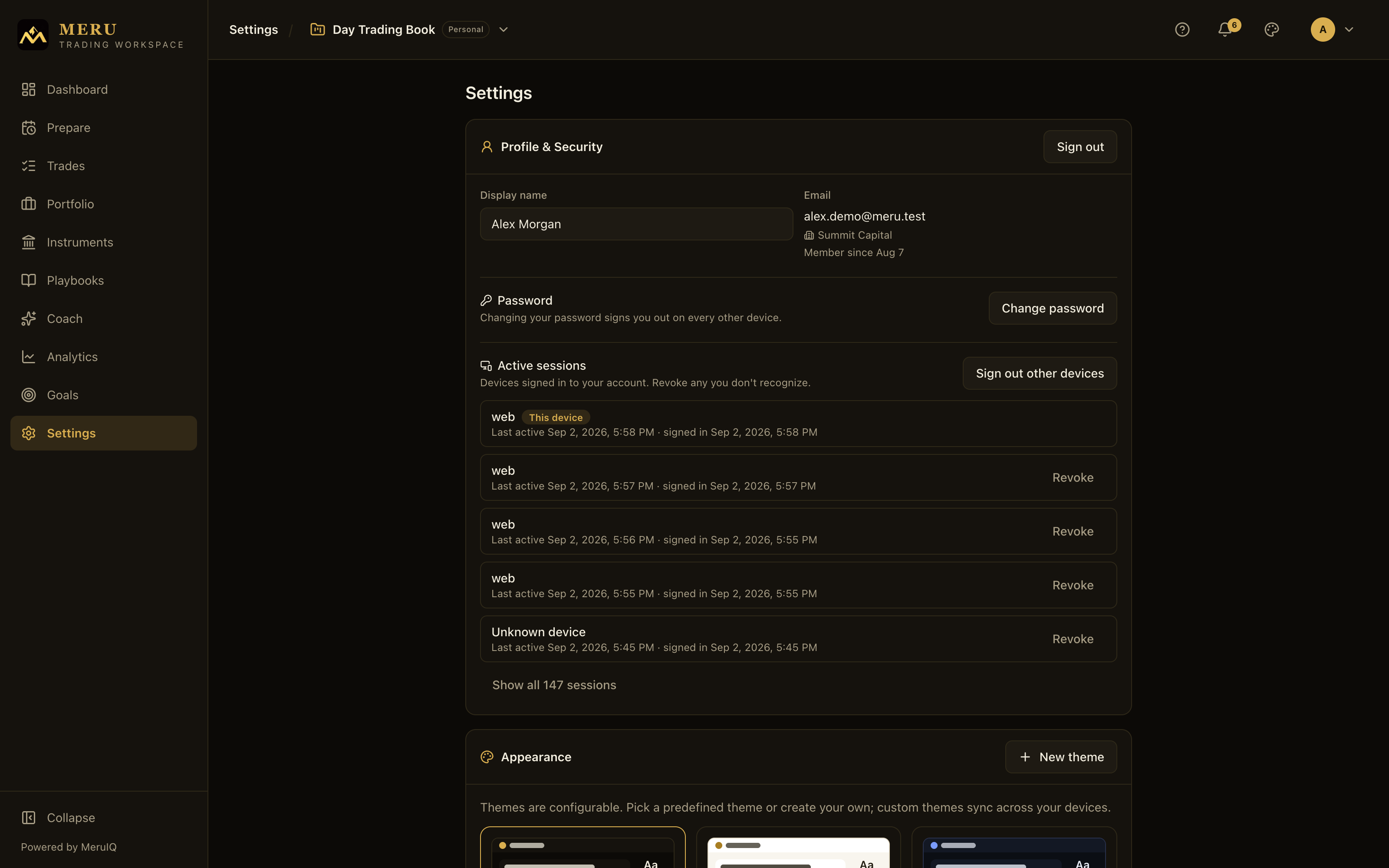
Profile & Security
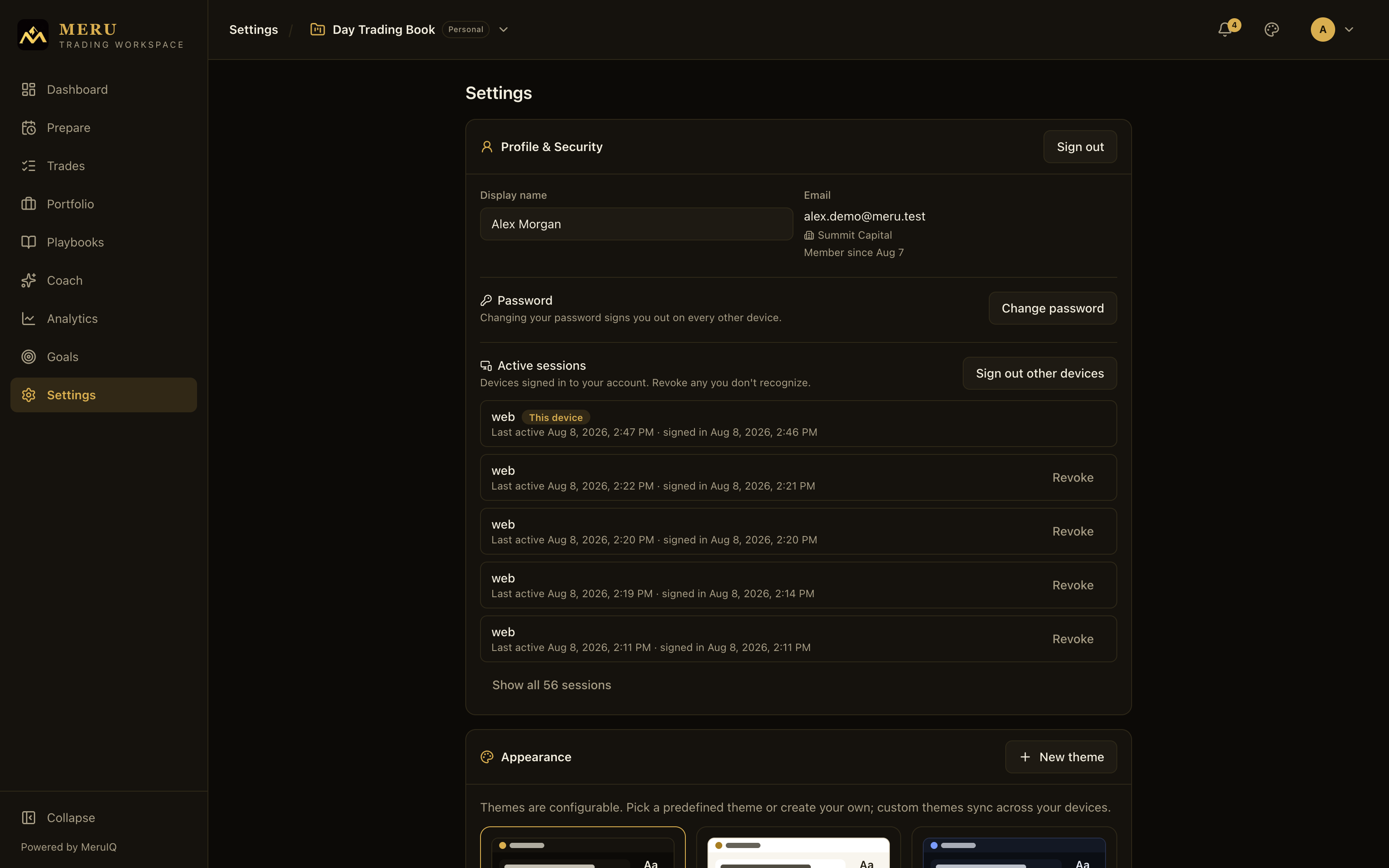
The first card holds your identity. Edit your Display name and a Save name button appears; the name is what teammates and managers see across the workspace. Next to it, the card shows your Email (your sign-in identity, which cannot be changed here), your organization membership if you have one, and a Member since date. A Sign out button sits in the card header.
Password
The Password section behaves differently depending on how you signed up:
- Email accounts get a Change password button. Fill in Current password, New password (8+ characters), and Confirm new password, then confirm. Changing your password signs you out on every other device, and the card confirms it: Password changed. Other devices were signed out.
- Google accounts see a badge, Signed in with Google, next to the email, and the section just says: This account signs in with Google. There is no password to change. Your password lives with Google, so manage it there.
Active sessions
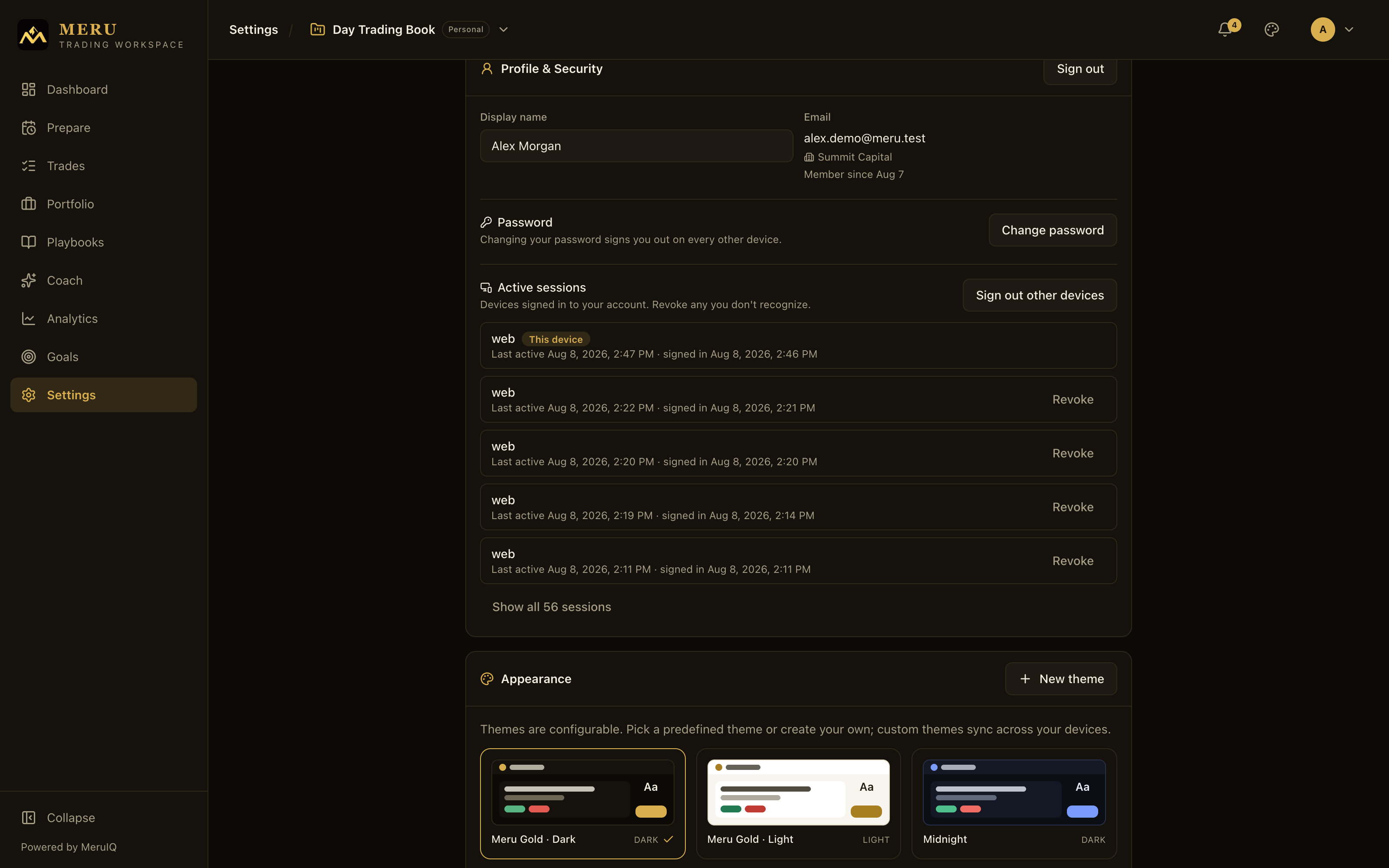
The Active sessions list shows every device signed in to your account, each with a device label, when it was last active, and when it signed in. Your current one is tagged This device. Use Revoke on any session you don't recognize, or Sign out other devices to end everything except the one you're on. Long lists collapse to the five most recent with a Show all button.
Verifying your email
An account created with an email address starts out unverified: the address is a claim until your inbox answers. Nothing is blocked while it is unverified, but a slim banner rides above every page, on the web and in the mobile app, reading Verify your email, we sent a link to your address, with a Resend the link button (Resend on mobile). The email is titled Verify your Meru Trading Workspace email; click Verify my email in it and the app opens on an Email verified page. The link is single use and expires in 48 hours; requesting a new one retires the old one. Completing a password reset, or signing in with Google on the same address, verifies it as well.
Appearance
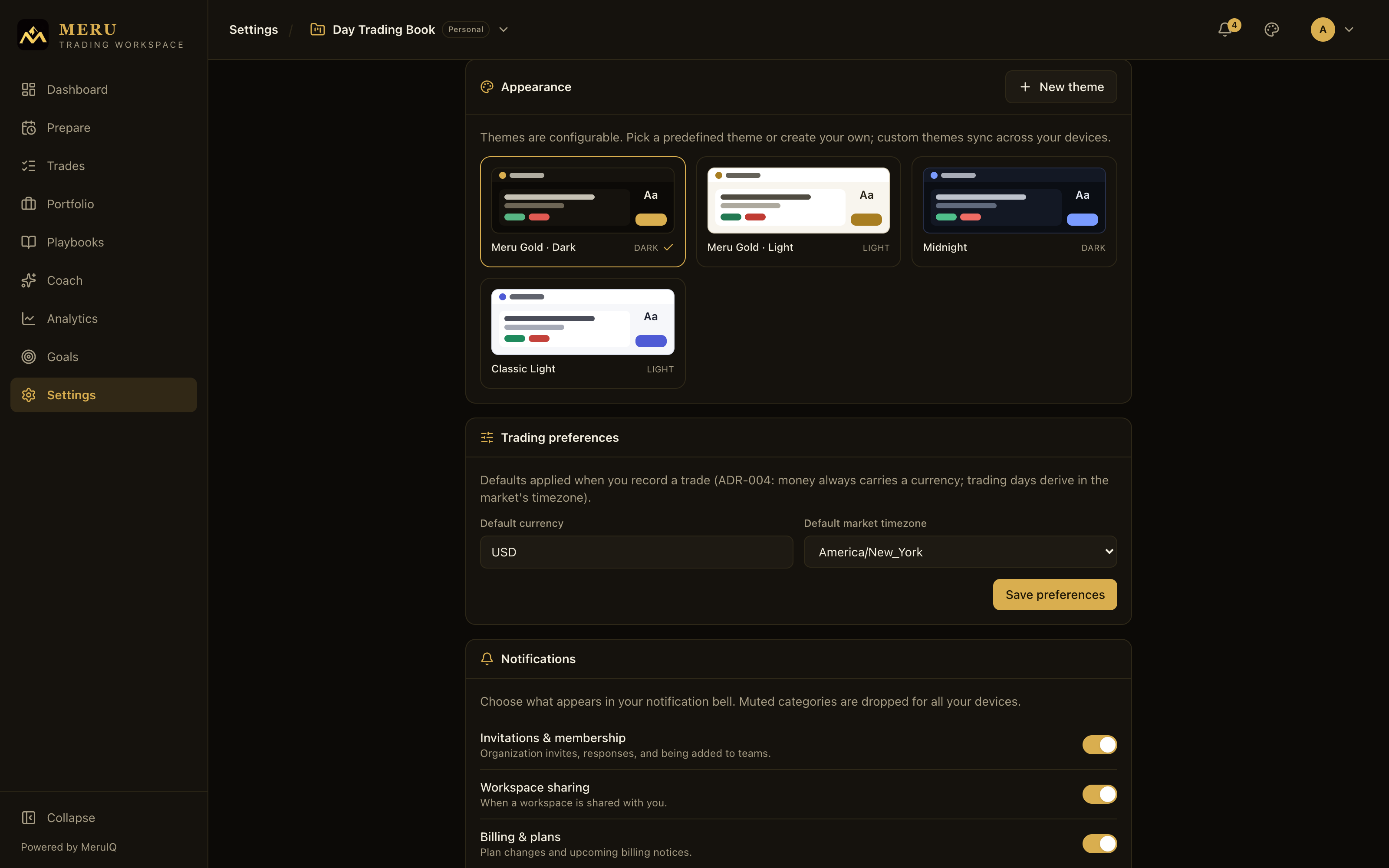
Themes in the Workspace are configurable token sets, not a fixed light/dark pair. The Appearance card shows every available theme as a live miniature of the workspace: pick from the built-ins, including Gold · Dark, Gold · Light, Midnight, and Classic Light. Click a card to apply it instantly; the active theme is outlined with a check mark. The palette icon in the app header offers the same list as a quick menu from anywhere.
Custom themes
- Click New theme in the card header.
- Give it a Theme name, pick a built-in to Start from, and set the Appearance (Dark or Light).
- Adjust the color tokens with the pickers: Background, Card, Card (raised), Borders, Text, Muted text, Accent, Text on accent, Positive, Negative, and Warning. A live preview strip below shows your tokens on real UI elements as you edit.
- Click Create theme. It joins the theme grid like any built-in; click it to apply.
Custom themes are saved to your account and sync across your devices. Their cards carry extra pencil and trash buttons to edit or delete them; editing reopens the same editor with a Save changes button.
Trading preferences
Defaults applied when you record a trade: Default currency (a three-letter code such as USD) and Default market timezone. Every trade carries a currency and a market timezone, and the trading day derives in the market's timezone, so set these to the market you trade most and you rarely have to touch them per trade. Click Save preferences to apply.
Notifications
Choose what appears in your notification bell. Four category switches: Invitations & membership (organization invites, responses, and being added to teams), Workspace sharing (when a workspace is shared with you), Billing & plans (plan changes and upcoming billing notices), and Watchlist alerts (a symbol hitting your long or short target, or moving past your day-move threshold). Muted categories are dropped for all your devices.
Subscription and billing
The Subscription card shows the three individual tiers side by side, with your current plan outlined and each card listing exactly what it includes:
- Base Camp (free): disciplined journaling to get started, with capped workspaces and playbooks plus trades, journal, and analytics.
- Ascent: the full MeruIQ improvement loop: more workspaces and playbooks, MeruIQ insights, and Goals & tracking.
- Summit: everything, without limits, plus MeruIQ Coach & weekly review.
The exact limits, features, and prices are always read from the live catalog and printed on the cards. A Monthly / Annual toggle above the cards switches the prices shown: annual billing costs ten months for a full year, two months free, and the toggle says so. During a promotion, a card shows the regular price struck through, the promo price highlighted, and a label with the offer and its end date; because annual derives from the monthly price in force, promotions discount annual purchases too.
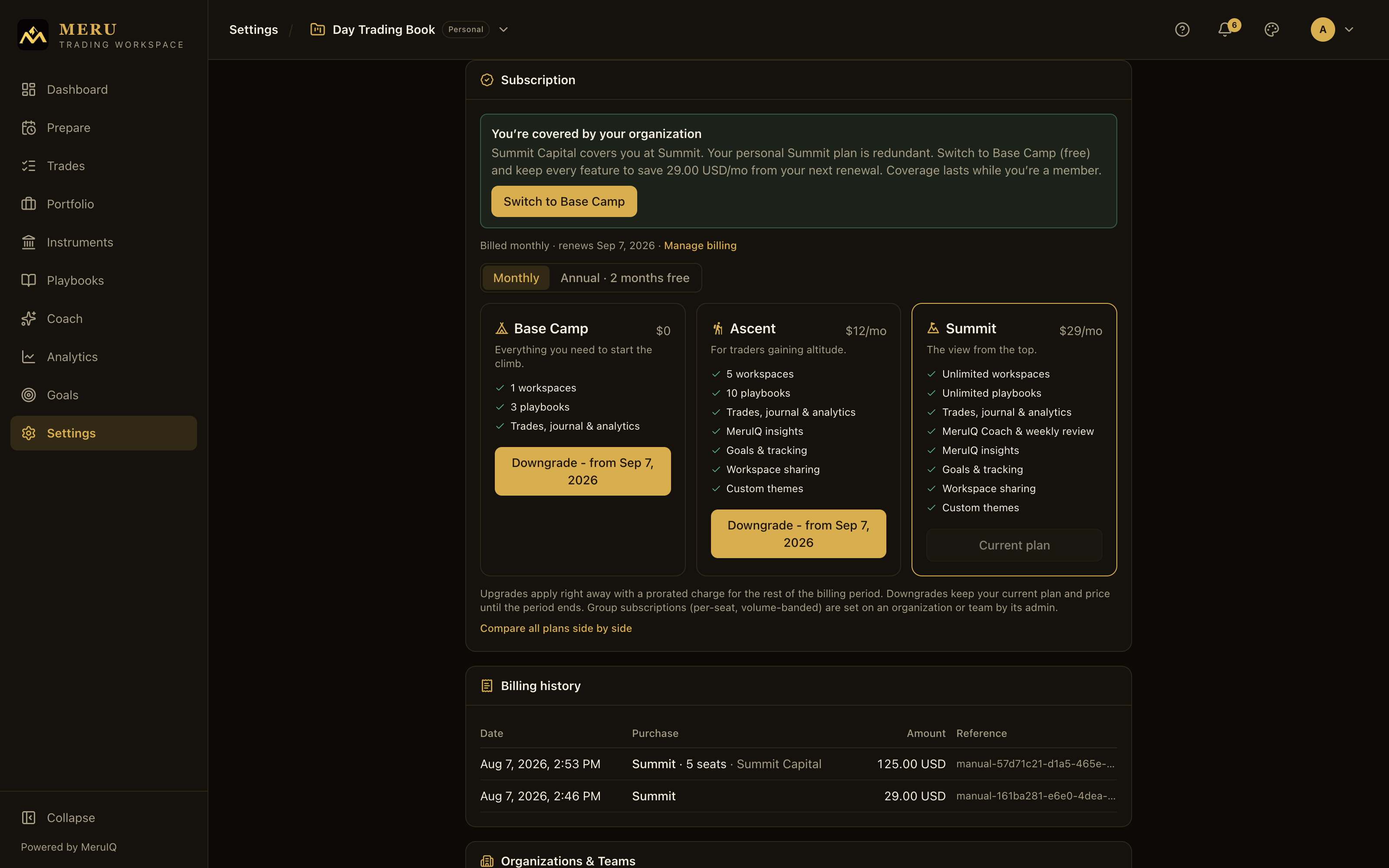
Each card opens with its tagline: Everything you need to start the climb for Base Camp, For traders gaining altitude for Ascent, and The view from the top for Summit. Under the cards, Compare all plans side by side opens the Compare plans dialog: every limit and feature in one table, grouped into Workspace, Market preparation, Analytics & intelligence, and Collaboration & teams, with the individual price and the per-seat team price at the top. The same table is reproduced under What each plan includes below.
Your first paid plan: hosted checkout
The first time you move from Base Camp to a paid plan, the button hands you to a secure checkout page hosted by our payment provider, where you enter your card. Nothing changes in the app until the payment completes. When you return, the Subscription card confirms it: Payment complete, your plan activates in a few seconds, and the cards update on their own. If you back out, it says Checkout was cancelled, nothing was charged. Once a card is on file, every later change happens in the app without leaving Settings.
Changing plans
Billing runs on an anniversary cycle. Your period, a month or a full year on annual billing, is anchored to the date you subscribed, not the calendar. When you are on a paid plan, a status line above the cards states how you are billed and your next renewal date. The buttons state the consequences before you commit:
- Upgrades apply immediately. The button shows the estimate up front, for example Upgrade now · ≈$8.50 prorated: you pay only the price difference for the days left in your current period, then the full new price from the next renewal.
- Downgrades are scheduled: the button reads Downgrade with your period end date. You keep your current plan, features, and price until then. While a change is pending, a Scheduled change banner spells out what holds and what starts when, and your current plan's button becomes Keep plus the plan name, which cancels the scheduled change.
- Switching billing intervals follows the same logic. Moving to annual is an upgrade: it applies right away, a fresh year starts on that day, and the unused part of your current month is credited against the annual price. Moving back to monthly is a downgrade: annual billing holds until your year ends, then monthly begins.
- If your access comes from an organization, the card says so, names the organization, and shows your individual plan separately. And if you are paying for a personal plan that your organization's tier fully covers, a coverage advisory offers Switch to Base Camp so you stop paying for features you already get; see Teams & Organizations.
Billing history and managing your card
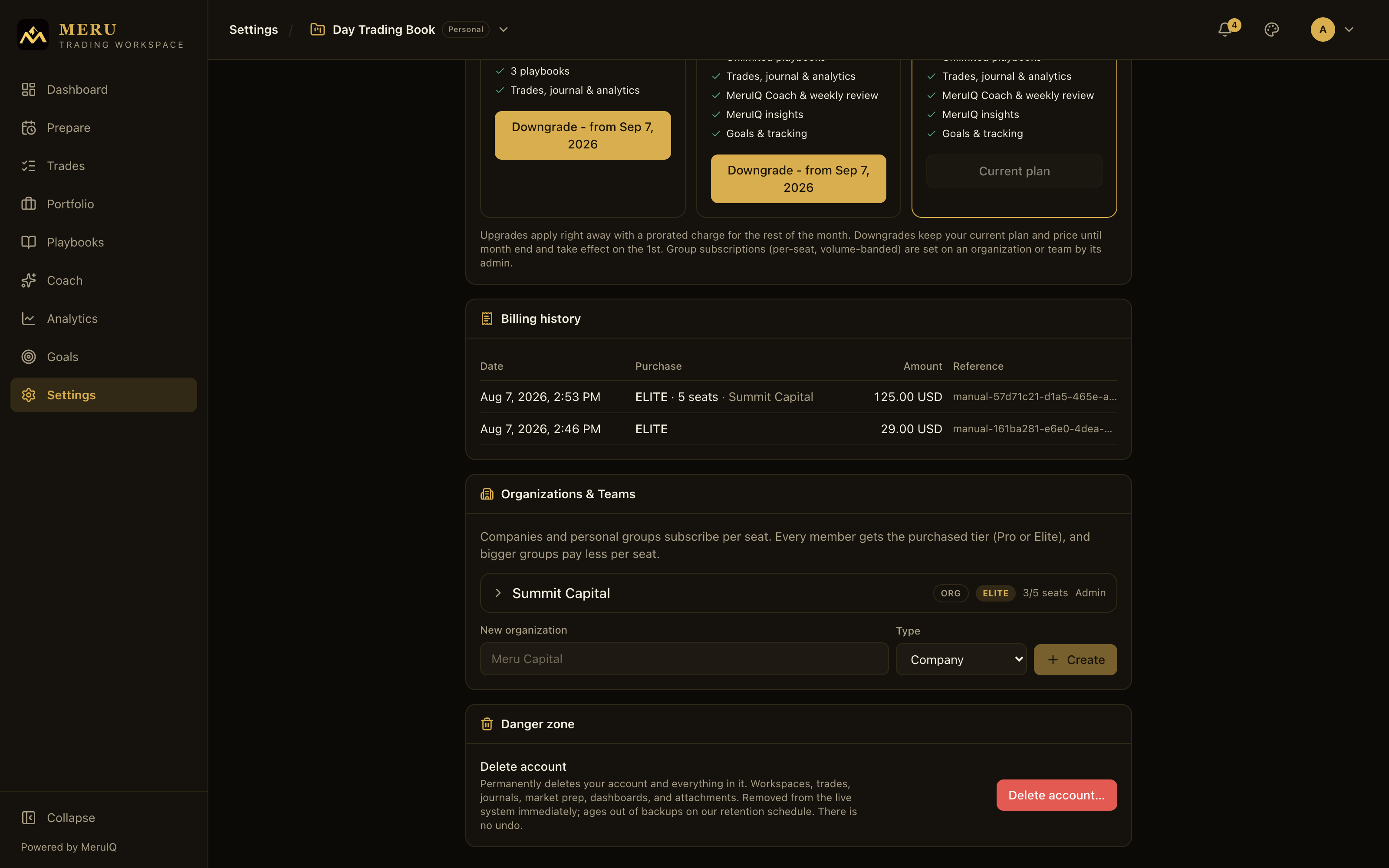
Below the plans, Billing history lists every purchase on your account: the date, what was bought (plan, seat count, and organization for group purchases), the amount with its currency, and a payment reference. Individual upgrades, org seat purchases, and renewals all appear here.
On a paid plan, a Manage billing link next to your renewal date opens a secure billing page hosted by our payment provider, where you can update your payment method, change your billing name and address, and download invoices and receipts. Plan changes always stay here in Settings; the billing page never sells or cancels anything.
If a renewal payment fails, nothing is locked straight away: the payment provider retries over the following days and your plan holds meanwhile. You are told at once, though: a Payment failed notification and an email explain what happened, a strip above every page reads Your last payment didn't go through. Update your card to keep your plan, and the same warning sits on the Subscription card's billing line. Use Manage billing to update the card. If the retries run out, the subscription ends and you return to Base Camp; for an organization, its admins get the same warning on the Organizations & Teams card and the organization goes dormant if the card is not fixed.
When you reach a plan limit
Limits only gate growth. When you try to create something past your plan's cap, the action is refused with a plain message such as Workspace limit reached (1). Upgrade your plan for more, or Storage limit reached (100 MB). Upgrade your plan for more when attachments fill your quota. The same rule protects you on the way down: downgrading never deletes a workspace, a playbook, a watchlist, or an attachment. Whatever you already have stays readable; you simply cannot add past the smaller cap until you remove something or upgrade.
Pages and tiles that belong to a higher plan do not error out. On the web they show an offer instead: Goals requires the Ascent plan, say, with View plans and Compare plans buttons. On mobile the equivalent card reads Goals is part of Ascent with a See plans button that opens the plan sheet.
What each plan includes
These are the defaults printed in the Compare plans dialog. The live catalog is always the authority; if the numbers on your screen differ from this table, trust the screen.
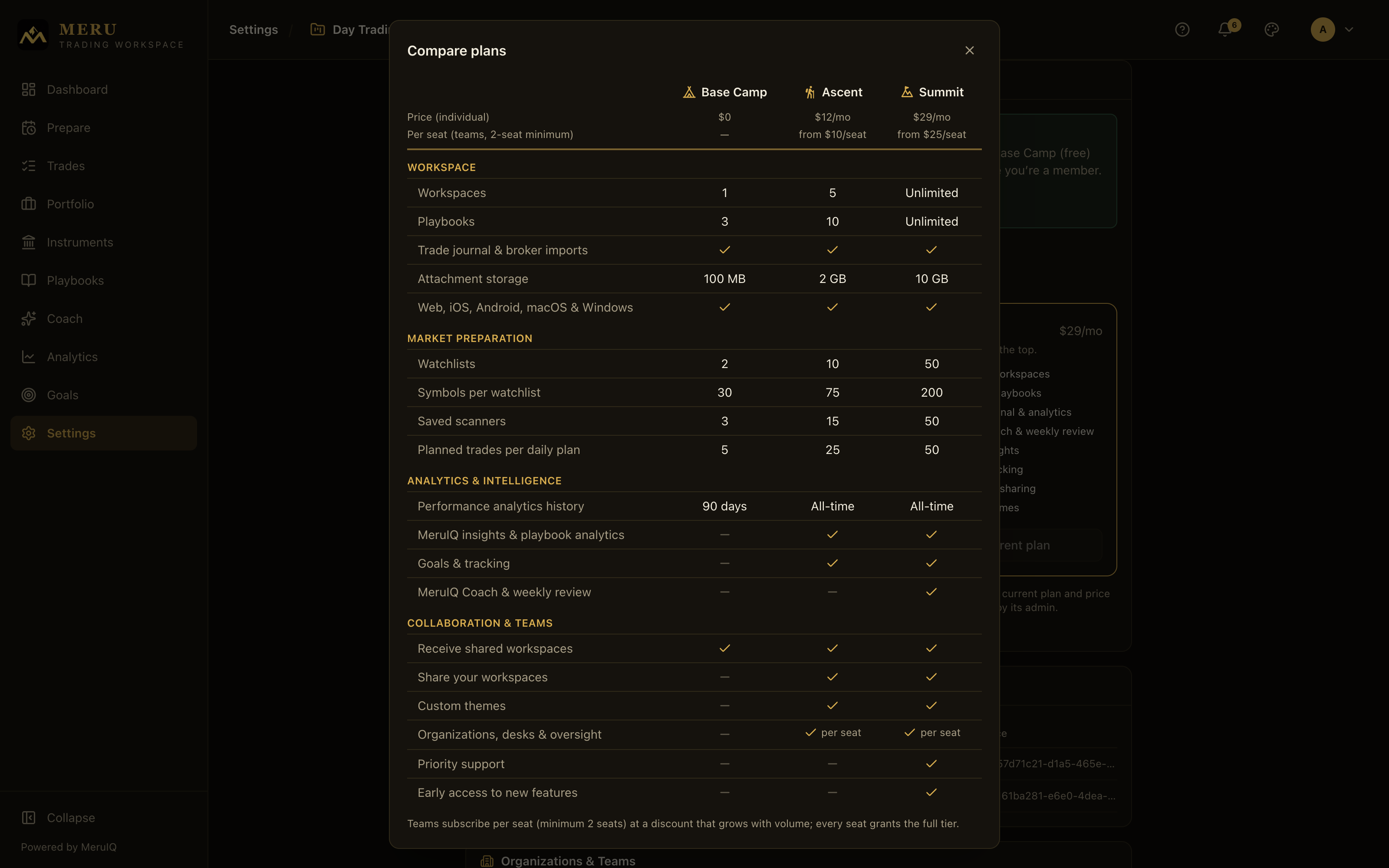
| Base Camp | Ascent | Summit | |
|---|---|---|---|
| Price (individual) | Free | $12/mo or $120/yr | $29/mo or $290/yr |
| Per seat (teams, 2-seat minimum) | n/a | $10, $9 at 10+, $8 at 25+ | $25, $22 at 10+, $20 at 25+ |
| Workspace | |||
| Workspaces | 1 | 5 | Unlimited |
| Playbooks | 3 | 10 | Unlimited |
| Trade journal & broker imports | Yes | Yes | Yes |
| Attachment storage | 100 MB | 2 GB | 10 GB |
| Web, iOS, Android, macOS & Windows | Yes | Yes | Yes |
| Market preparation | |||
| Watchlists | 2 | 10 | 50 |
| Symbols per watchlist | 30 | 75 | 200 |
| Saved scanners | 3 | 15 | 50 |
| Planned trades per daily plan | 5 | 25 | 50 |
| Analytics & intelligence | |||
| Performance analytics history | 90 days | All-time | All-time |
| MeruIQ insights & playbook analytics | No | Yes | Yes |
| Goals & tracking | No | Yes | Yes |
| MeruIQ Coach & weekly review | No | No | Yes |
| Collaboration & teams | |||
| Receive shared workspaces | Yes | Yes | Yes |
| Share your workspaces | No | Yes | Yes |
| Custom themes | No | Yes | Yes |
| Organizations, desks & oversight | No | Per seat | Per seat |
| Priority support | No | No | Yes |
| Early access to new features | No | No | Yes |
There is no cap on how many trades you can record on any plan, and alerts are never counted separately: they are levels on watchlist symbols, so the symbol caps already bound them. Annual billing charges ten months for the year on every paid plan, individual or per seat.
Organizations & Teams
The Organizations & Teams card is where trading groups live: create an organization or personal team, manage members, roles, and desks, buy the per-seat group subscription, and reach org analytics. It's a chapter of its own: see Teams & Organizations.
Danger zone
The last card does exactly one thing: permanently delete your account. Delete account removes everything you own: every workspace, trade, journal, plan, watchlist, scanner, dashboard, and attachment. It signs out all your devices, takes effect in the live system immediately, and ages out of backups on the retention schedule. There is no undo.
- Click Delete account… to open the confirmation dialog, which restates what will be deleted.
- Prove it is you. Email accounts enter their Current password; Google accounts re-verify with the Confirm with Google to continue button, which shows Google identity confirmed once done.
- In Type DELETE to confirm, type DELETE. Only then does the button arm.
- Click Delete my account. You land on the sign-in page with the account gone.
Security settings in the mobile app
The iOS and Android app carries the same Settings sections (Profile & Security, Appearance, Trading preferences, Notifications, Subscription & Billing, Reference data, Organizations, Support) plus two device-level protections the web app has no need for.
App lock with Face ID or fingerprint
Under Profile & Security, the This device section offers a switch, Require Face ID or fingerprint, on phones with biometrics enrolled. Turn it on and your saved sign-in is stored where the phone will not release it without you: the next time the app opens it shows Locked. Unlock to continue where you left off with an Unlock button, and a Sign in with your password instead link if the biometric check fails. The setting protects the device if it is lost or borrowed; it does not change how the server checks who you are, and it survives signing out. Enrolling a new face or fingerprint on the phone resets it, so you sign in with your password once and turn it back on.
While the lock is on, three irreversible actions ask for the same biometric confirmation first: deleting the account, exporting your trade record as CSV, and changing your password. A cancelled prompt answers Cancelled, identity not confirmed and nothing happens.
Remembered sign-in address
The mobile sign-in screen pre-fills the email address of the last successful sign-in on that device, even after you sign out, so you only type the password. Change the address if you share the phone.